Searching for Specific Evidence Types in JusticeONE RMS
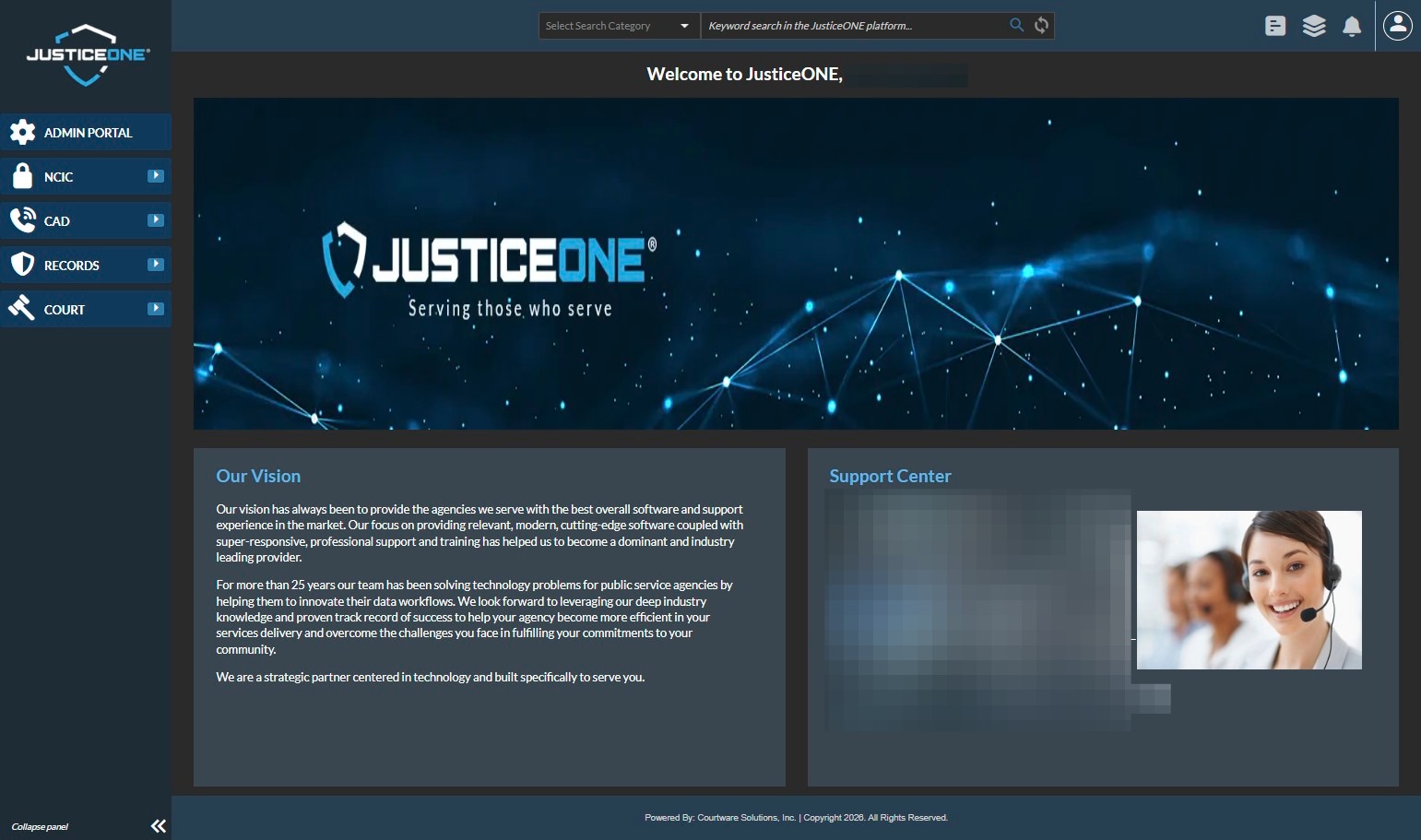
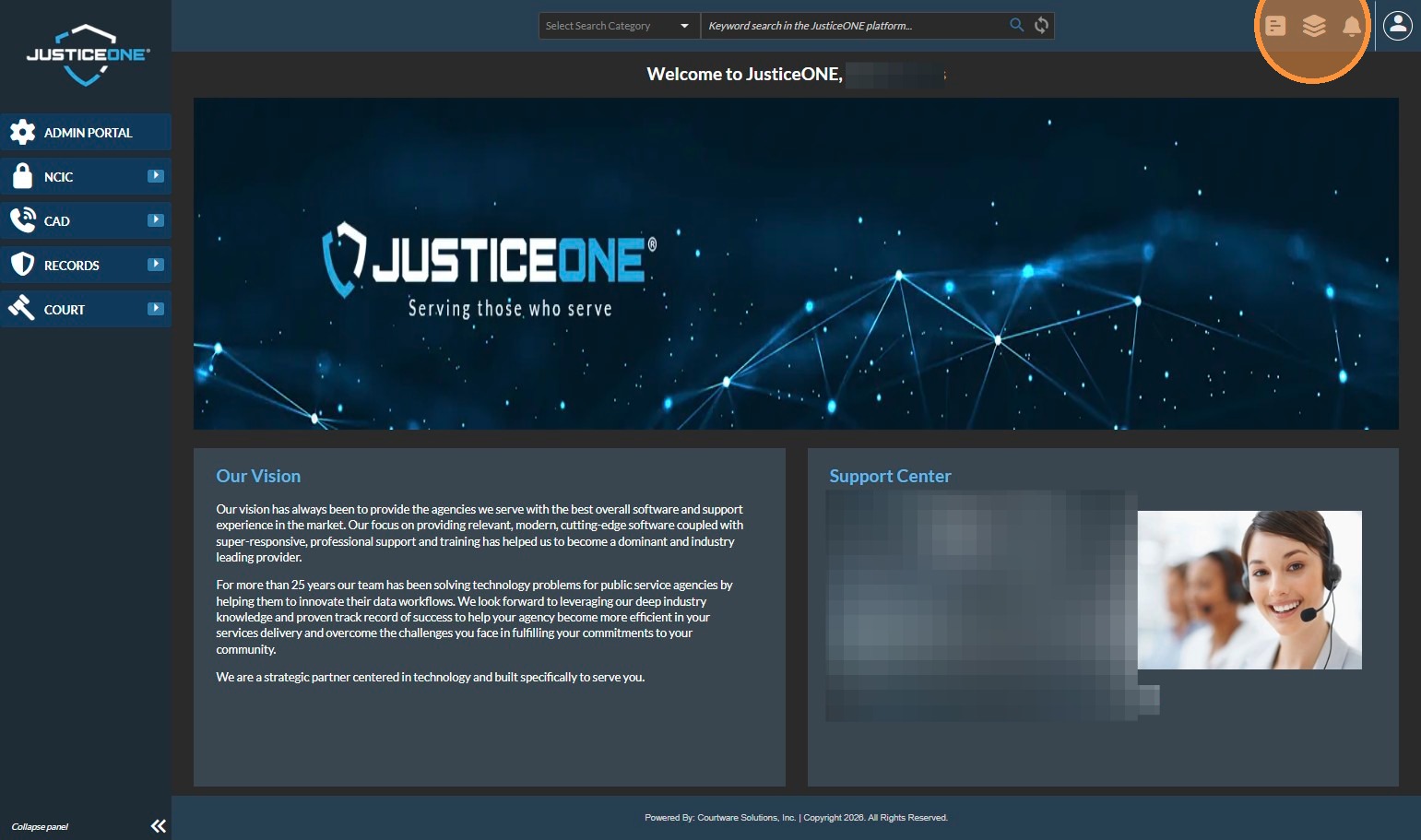
2. Click on the hamburger menu...
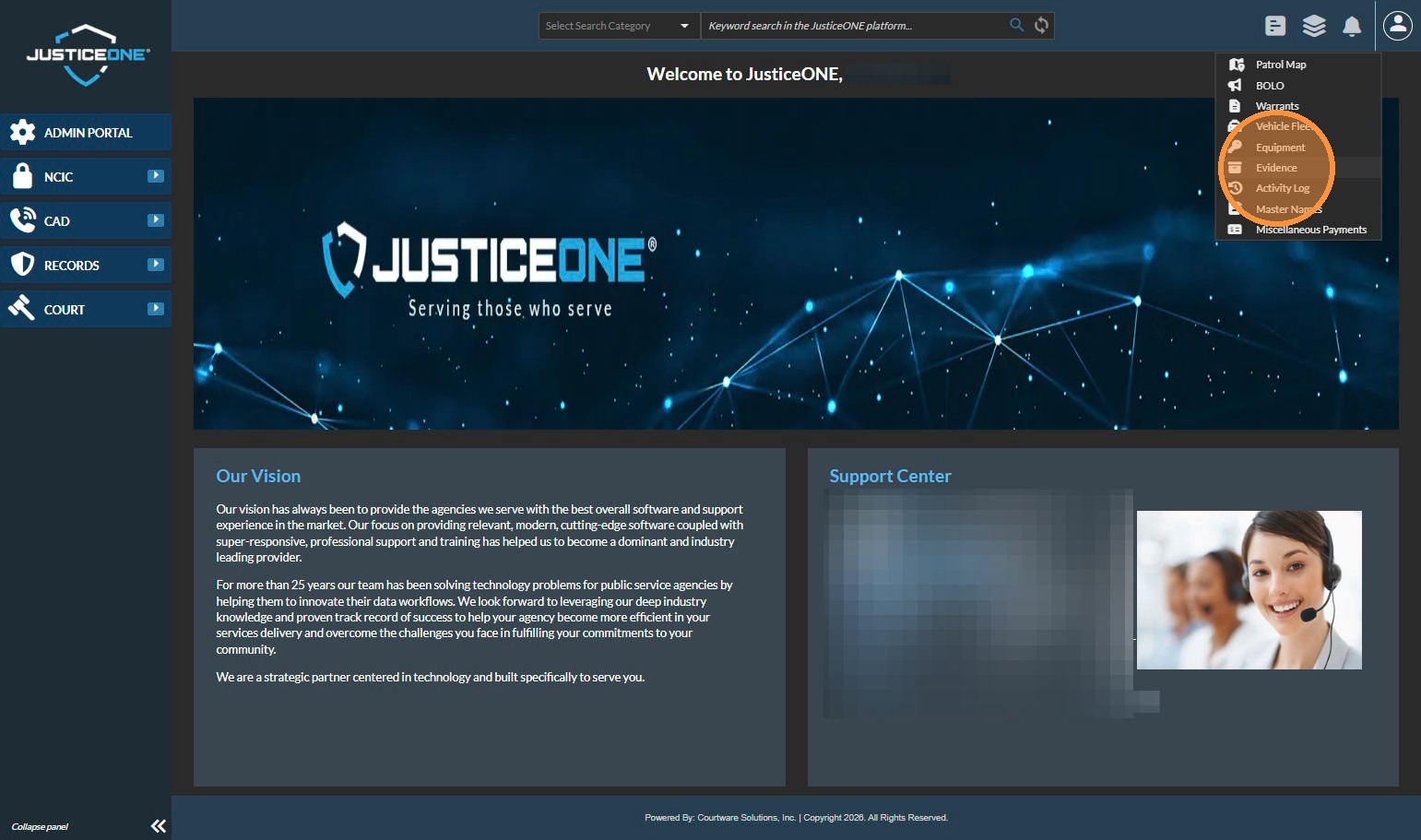
3. and select "Evidence"
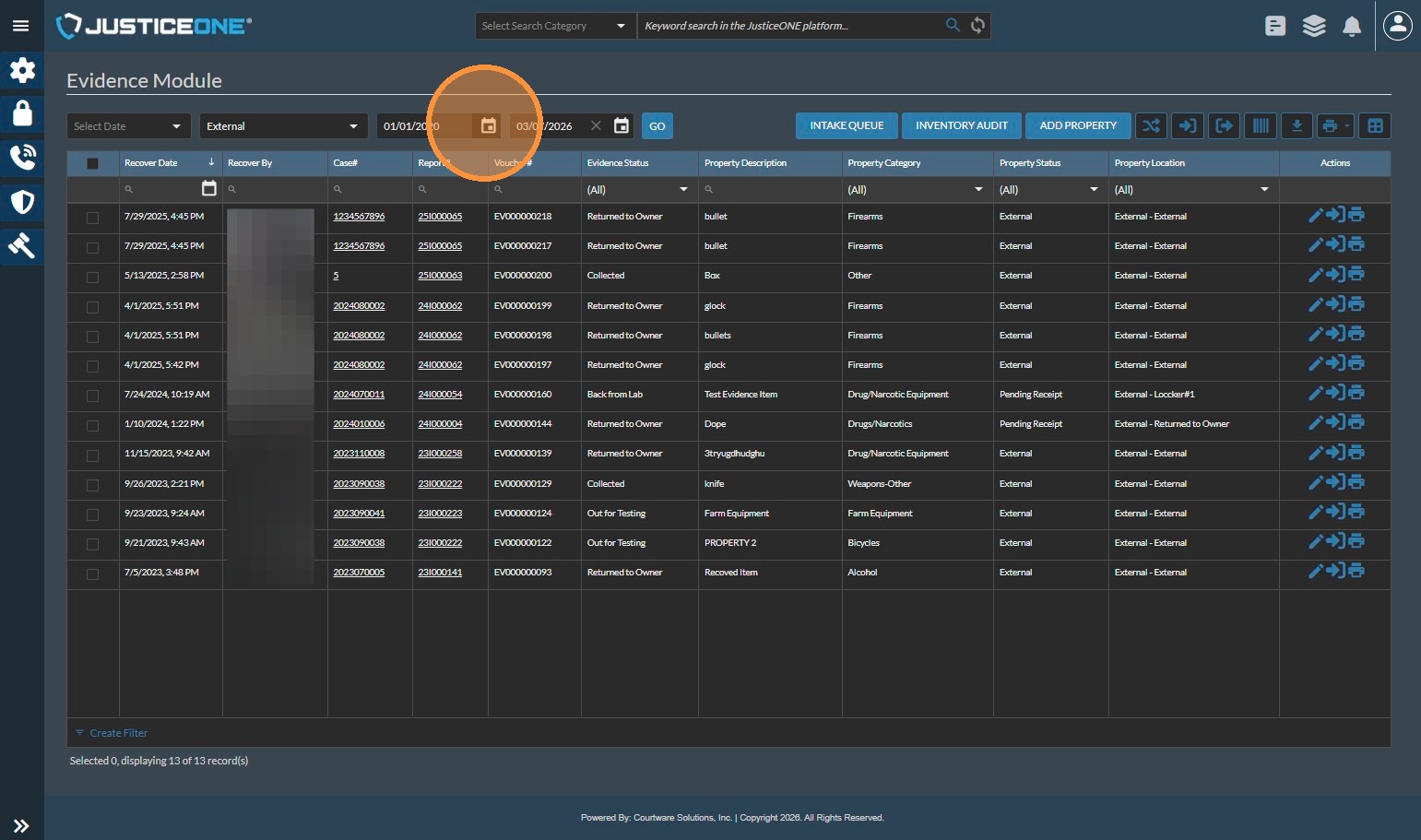
4. Select your begin date
5. ...
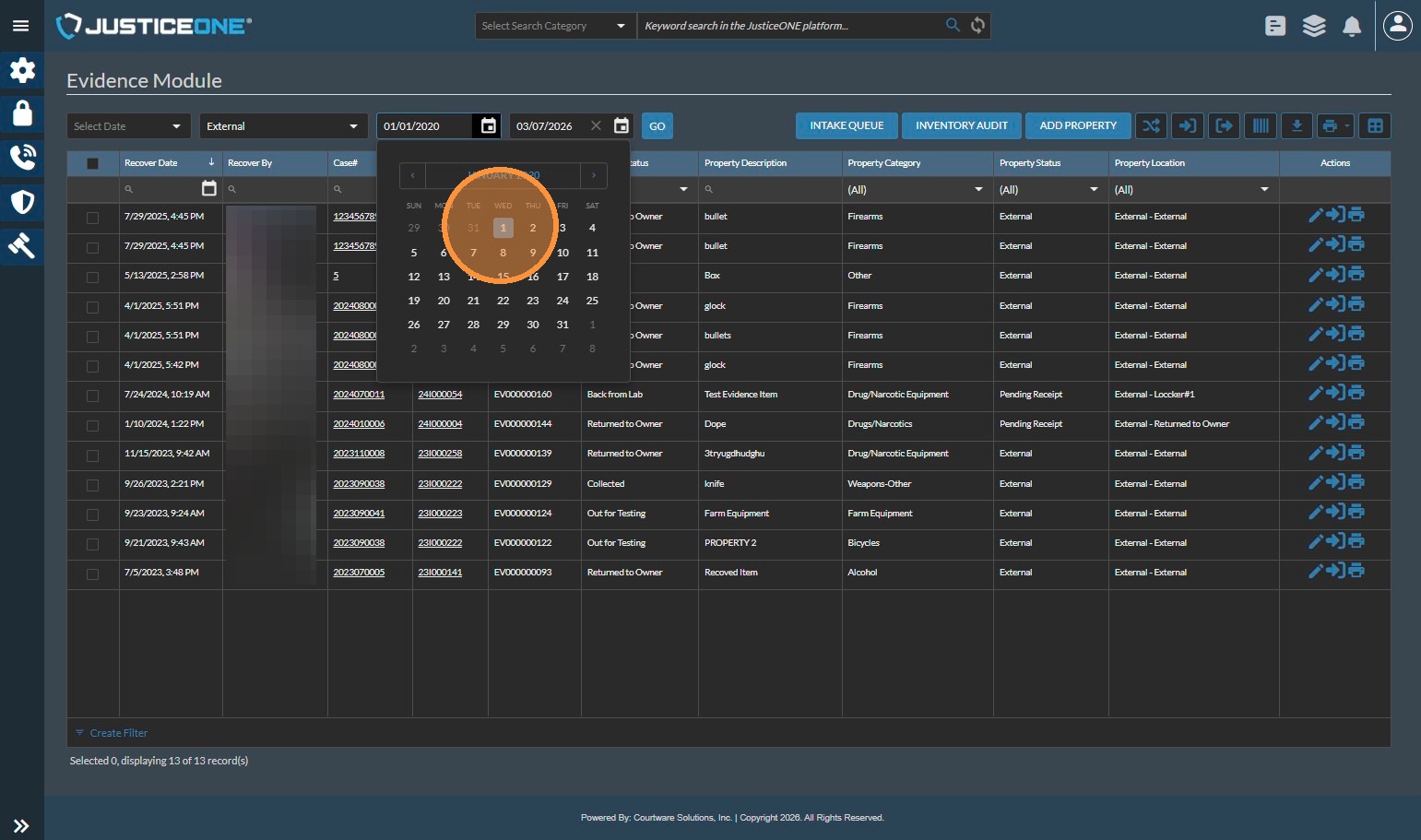
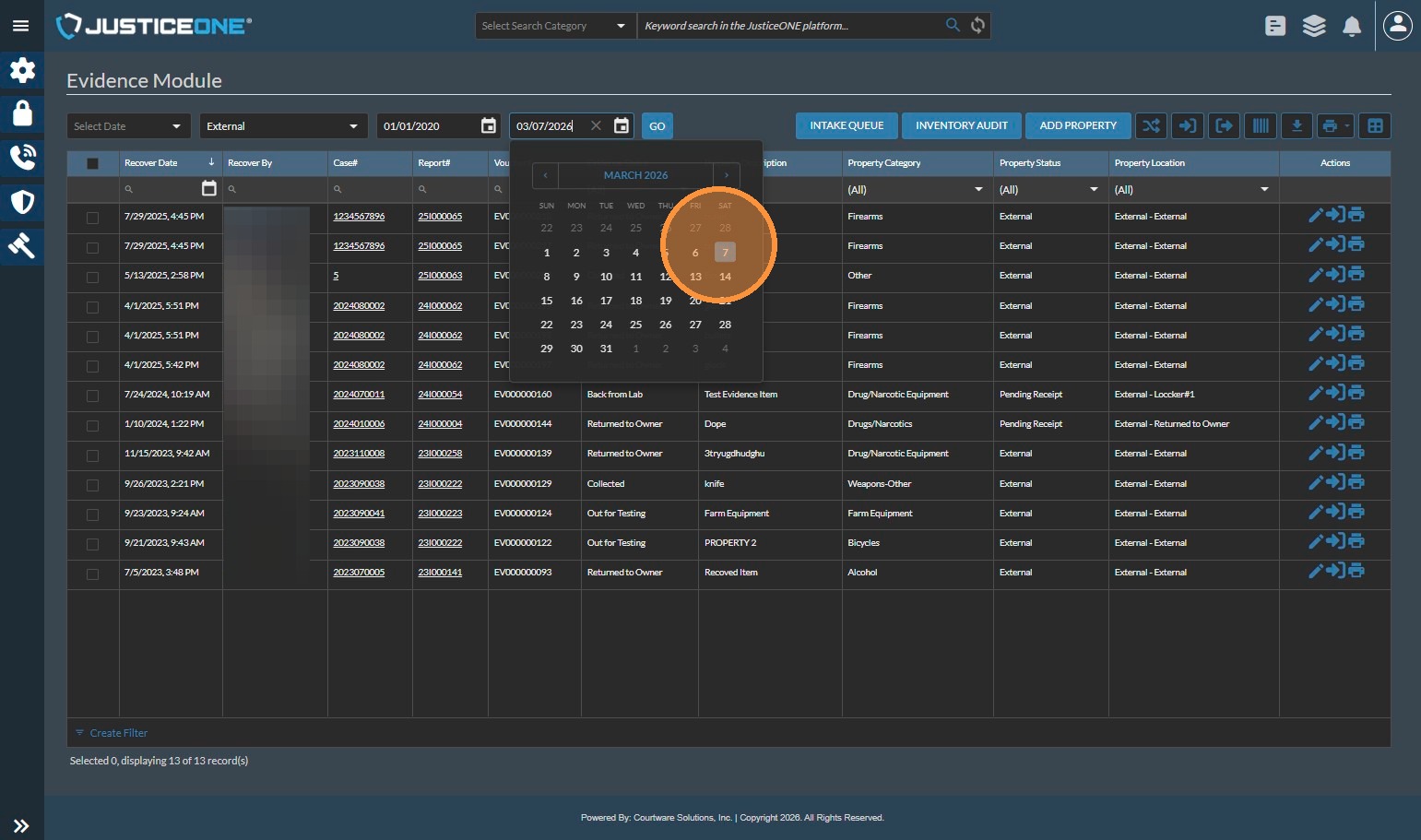
6. Then select your end date...
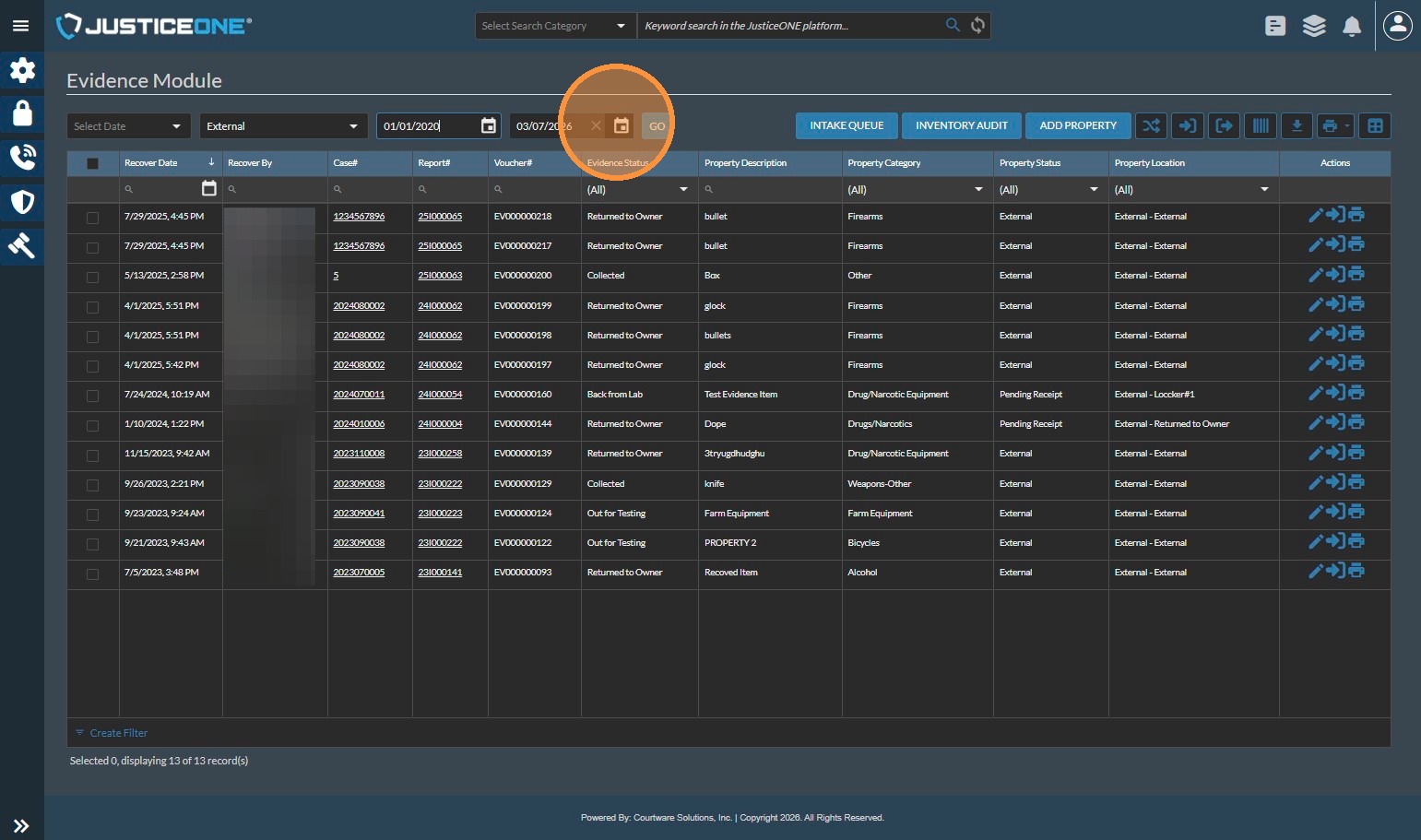
7. ...
8. Select the first evidence room to work with. If your search needs to include items that may have been disposed of or returned to owner, make sure to calculate for the "External" room at some point in this process. We will include external in this example.
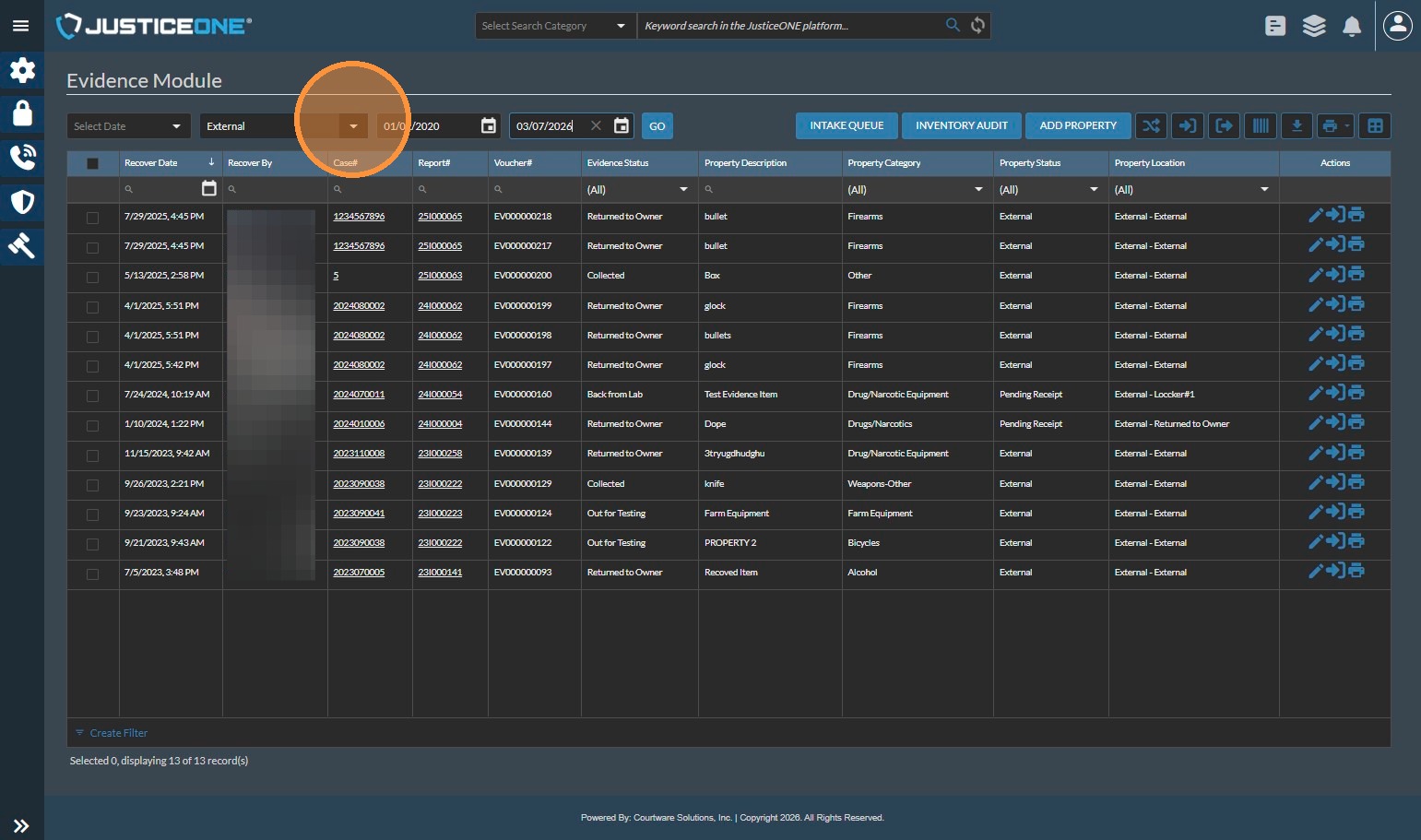
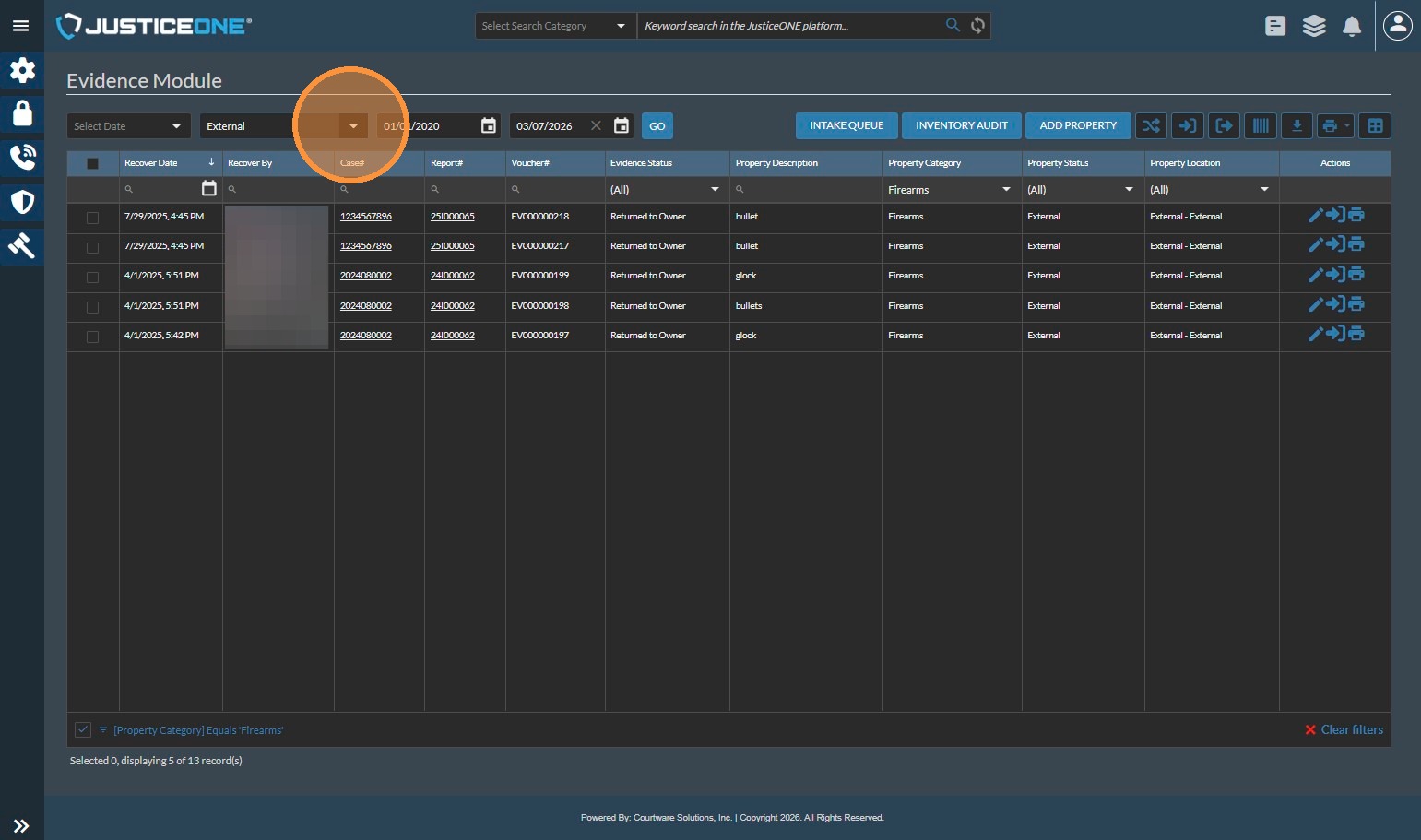
9. Click the first desired evidence room (in this case "External")
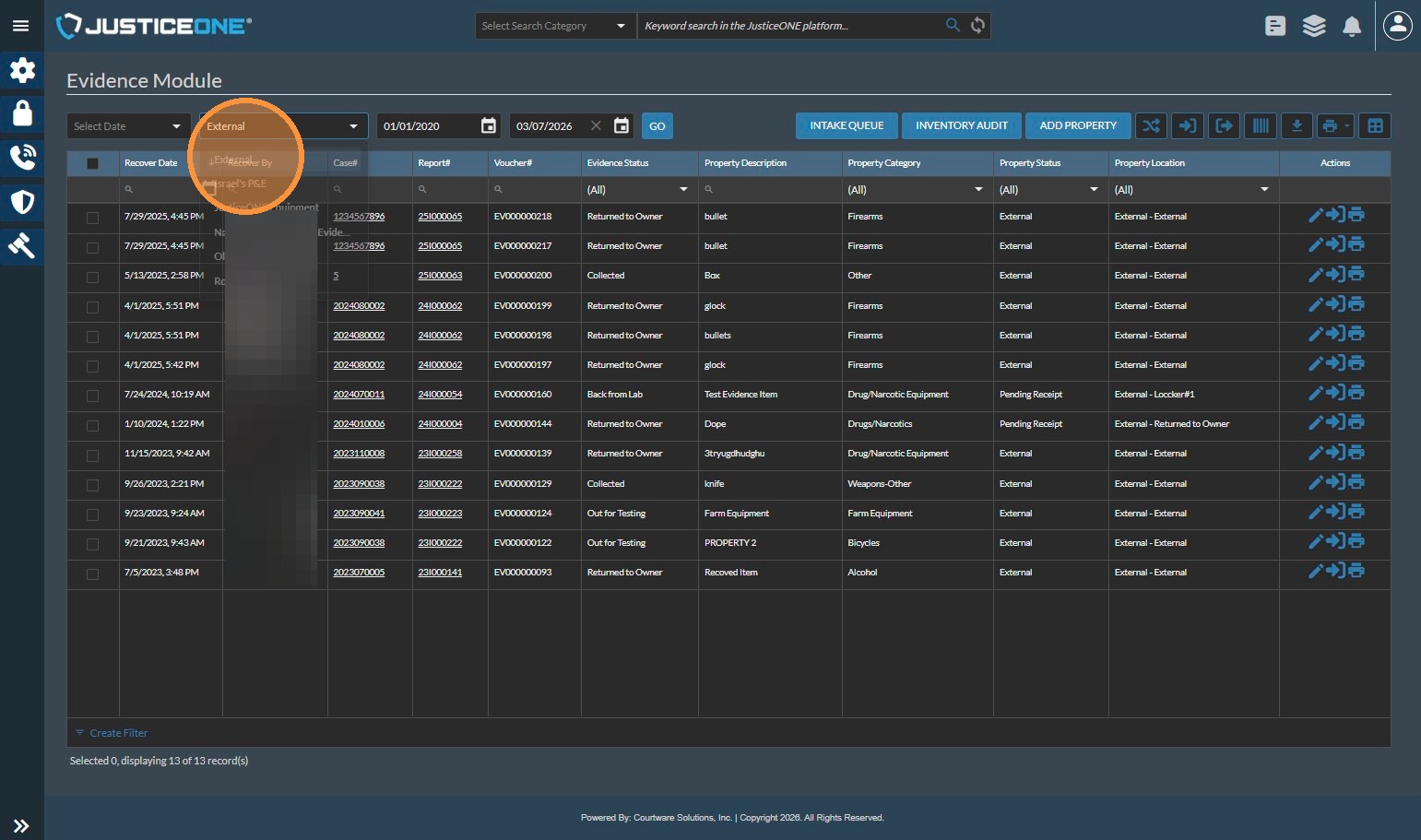
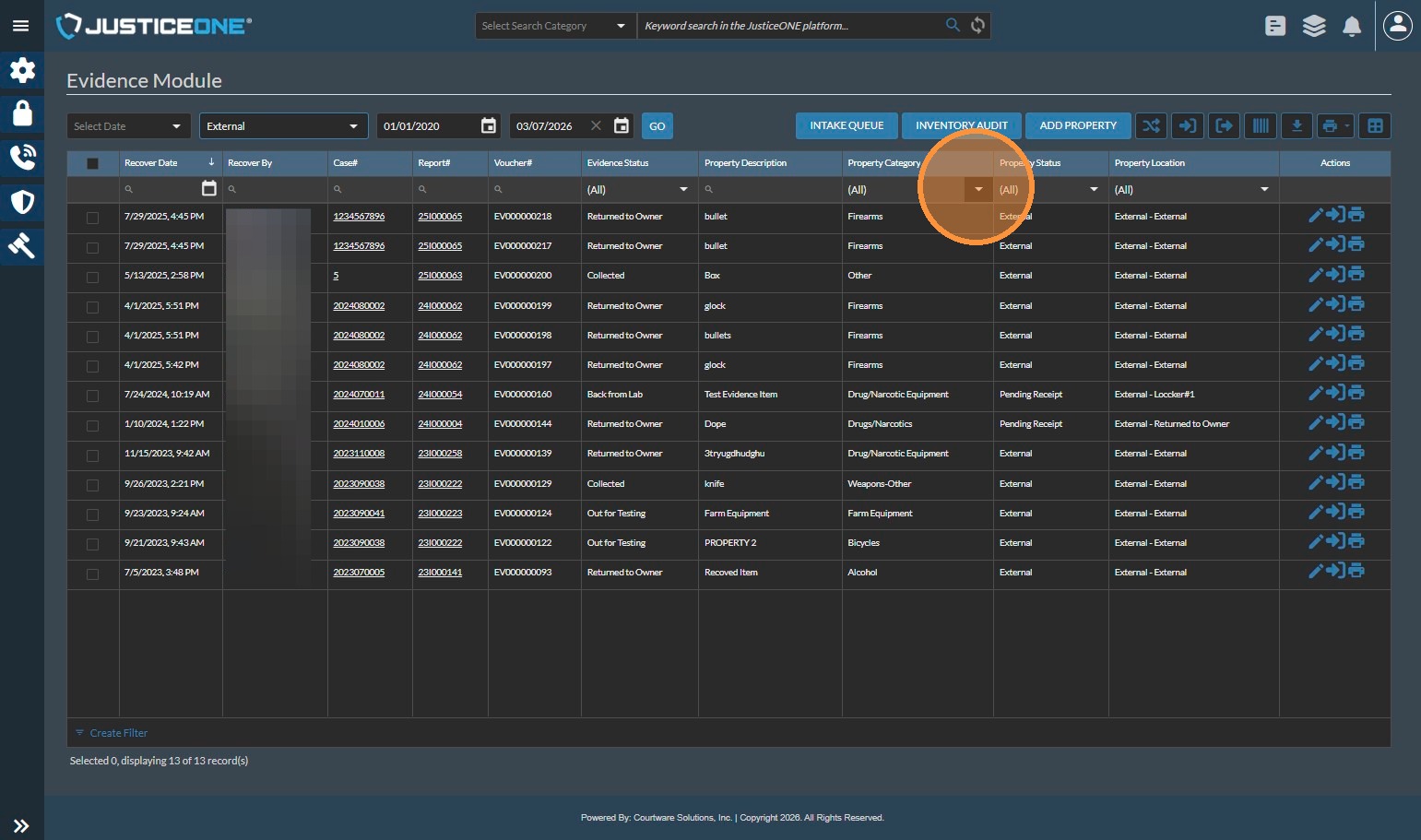
10. Filter the property category by clicking the dropdown...
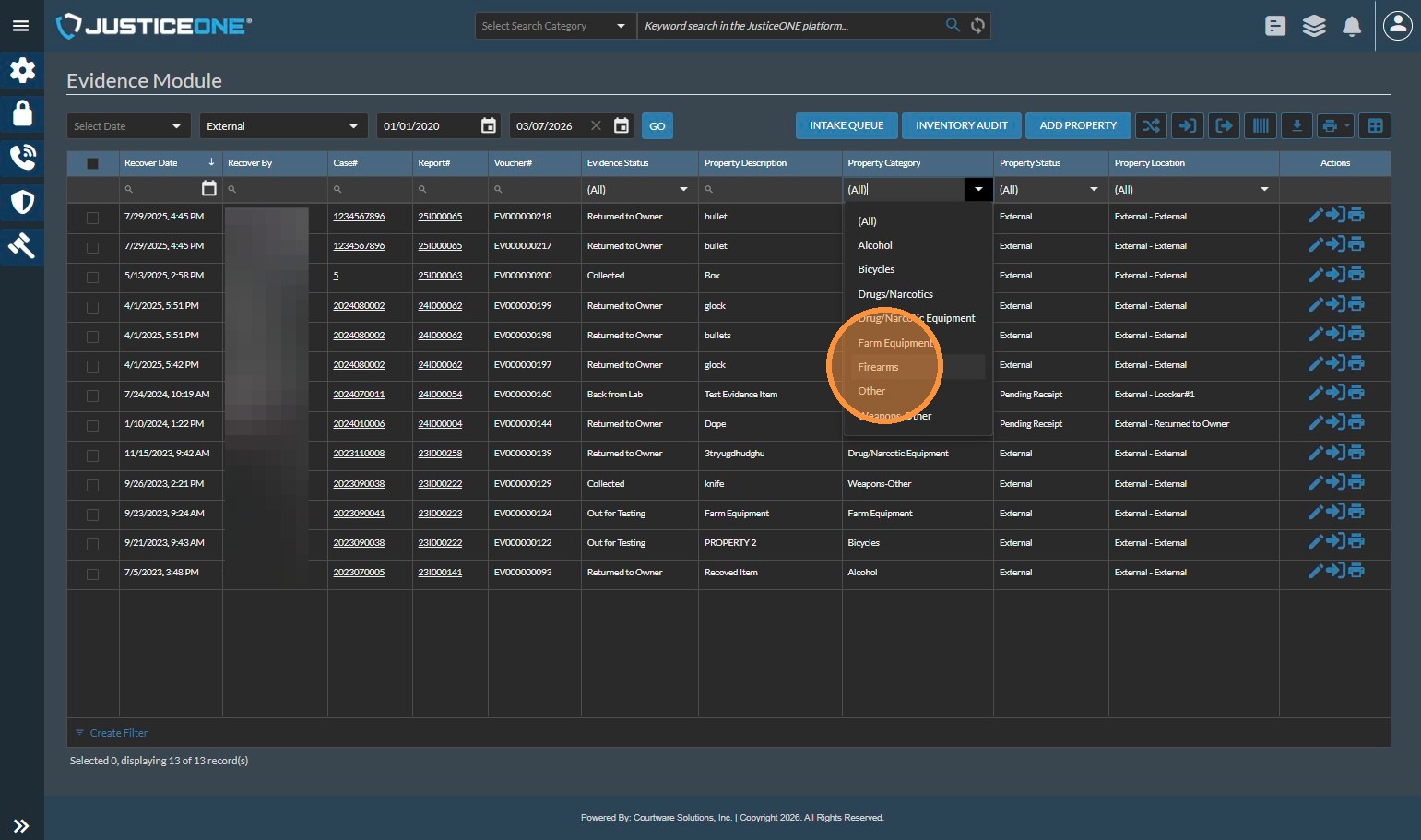
11. and clicking "Firearms".
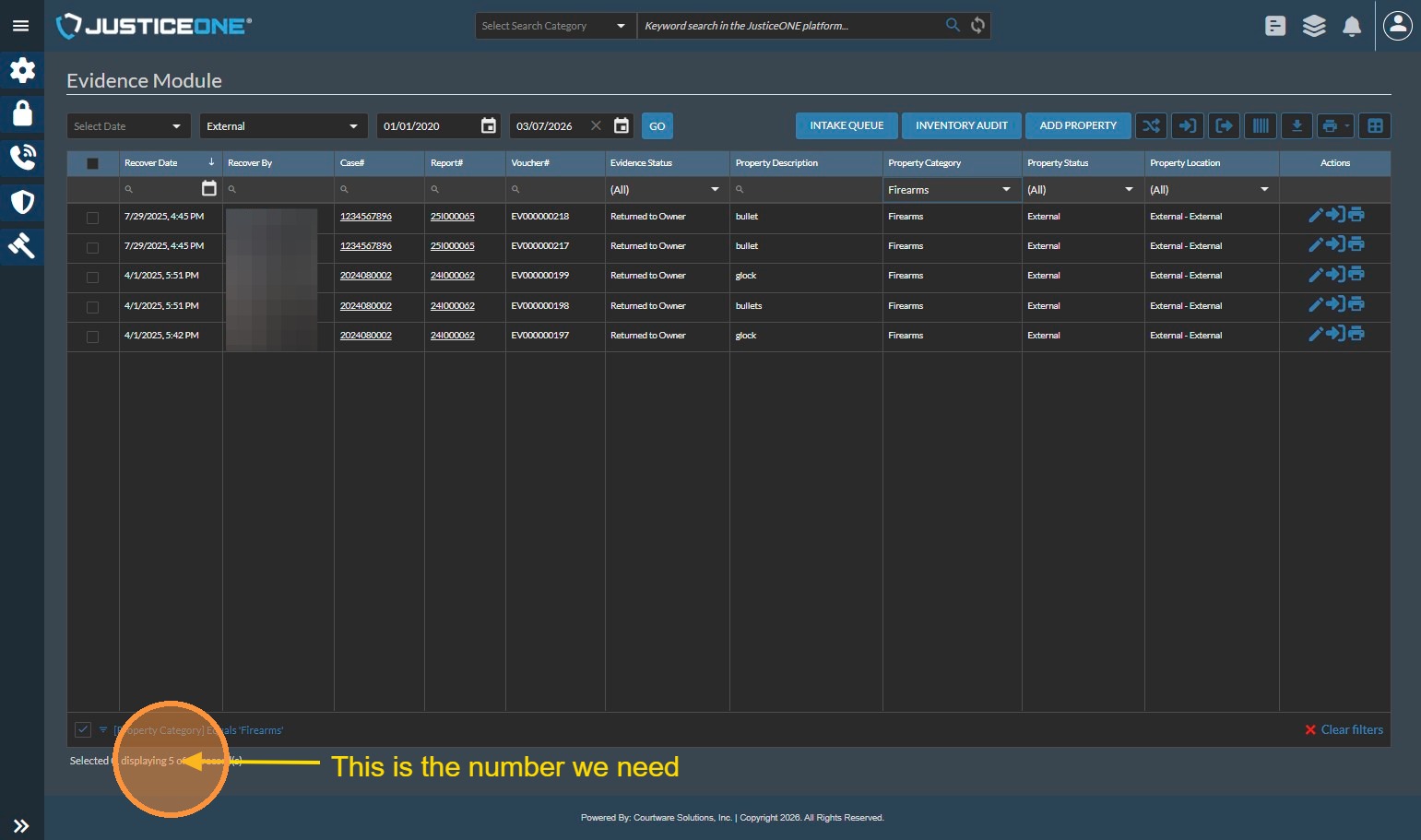
12. The system shows us that there were 5 firearms that are listed in this evidence room. Since this is the external room, we know that these have been released or disposed of.
13. To search across multiple rooms, simply select the next room in the dropdown...
14. ...
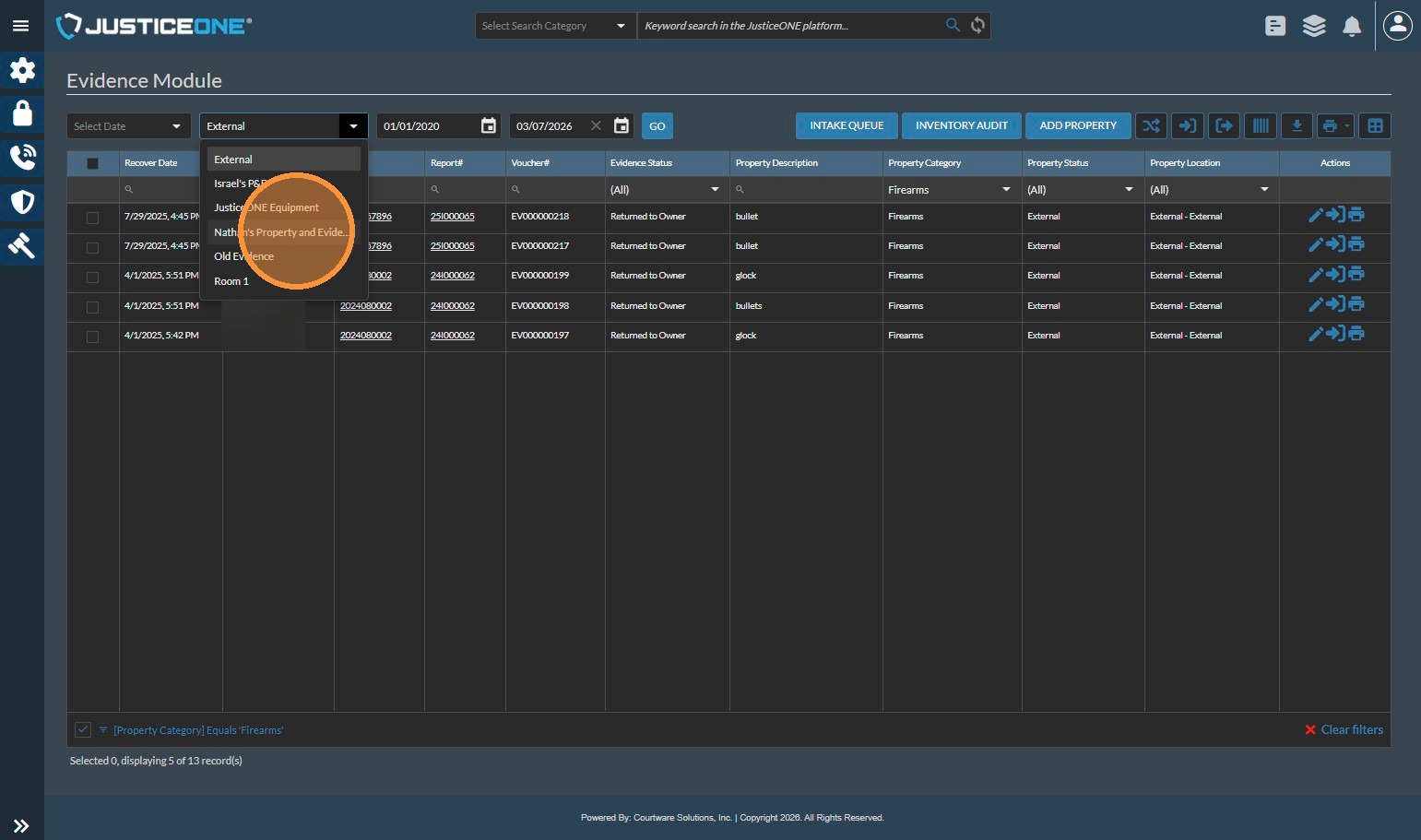
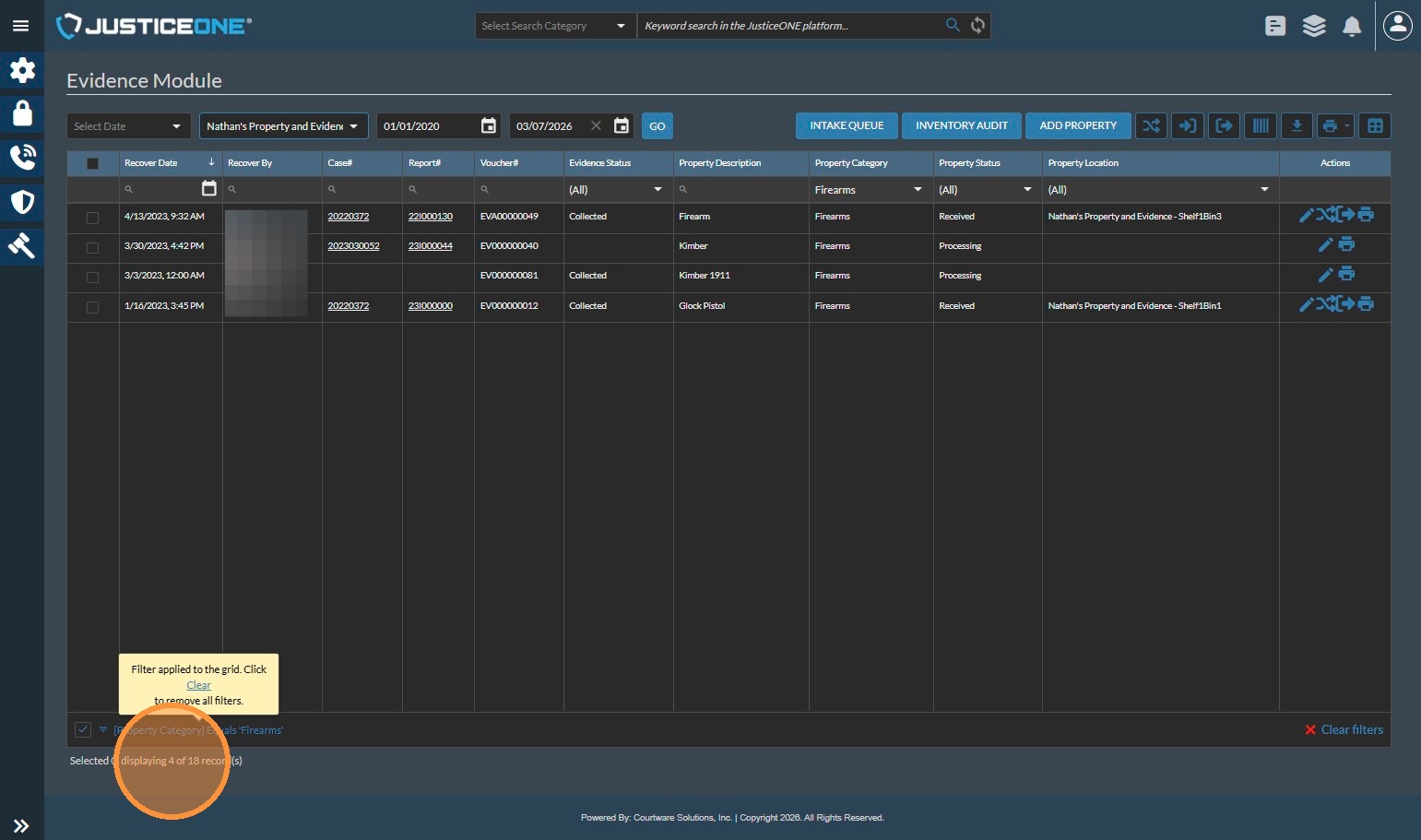
15. And the system will display the same data for the new room. Repeat the last 3 steps until you have gathered data for each room that is applicable to your data needs.
Make note of each count for each room, then sum the numbers to get the total number of firearms that have been held by the agency during the specified time period. For these two rooms, we would sum 5+4, coming up with a total of 9
Alert: Note: This will pull the total firearm count. If you need to filter further (such as illegally vs legally possessed firearms), you may need to review each item to determine the items to include. You may be able to use the Evidence Status or other available fields to accomplish this, depending on your agency's evidence handling procedures.
Related Articles
Pulling Statistics for Specific Offenses in JusticeONE RMS
1. Navigate to https://www.justice-one.us/home/info 2. Click "RECORDS" 3. Click "Incidents" 4. We need to make sure that "Offenses" are visible. If they are not, click on the "Grid Preferences" icon... 5. Click "Column Arrangement" 6. In the ...Report Data Sources: Officer Statistics Report
The Officer Statistics Report in JusticeONE RMS provides a summary of activity for a single officer through any specified time period. To run the report, follow the directions below: 1. From anywhere in JusticeONE, click "Records" 2. Click "Reports ...Releasing Property to Owner from JusticeONE RMS
Note: The following is not to be construed as legal advice, but is simply a reference from a retired police evidence custodian. Please speak to a licensed attorney in your state with any questions regarding proper handling of property and evidence. ...Change a Report Type in JusticeONE Admin Portal
1. Navigate to https://www.justice-one.us/home/info 2. Click "ADMIN PORTAL" 3. Click "Lookup Values" 4. Click "Records Lookups" 5. Click "Select" 6. Click "Cases / Reports" 7. Click "INCIDENT" 8. Click "REPORT TYPE" 9. Click the pencil icon to the ...JusticeONE RMS: Report Approval
To approve a report in JusticeONE RMS: 1. Find the report in question and click the pencil icon or the incident/crash number to open the report. 2. Go through the report and ensure that it is worthy of approval. 3. Use the approval dropdown box to ...