Report Data Sources: Officer Statistics Report
The Officer Statistics Report in JusticeONE RMS provides a summary of activity for a single officer through any specified time period. To run the report, follow the directions below:
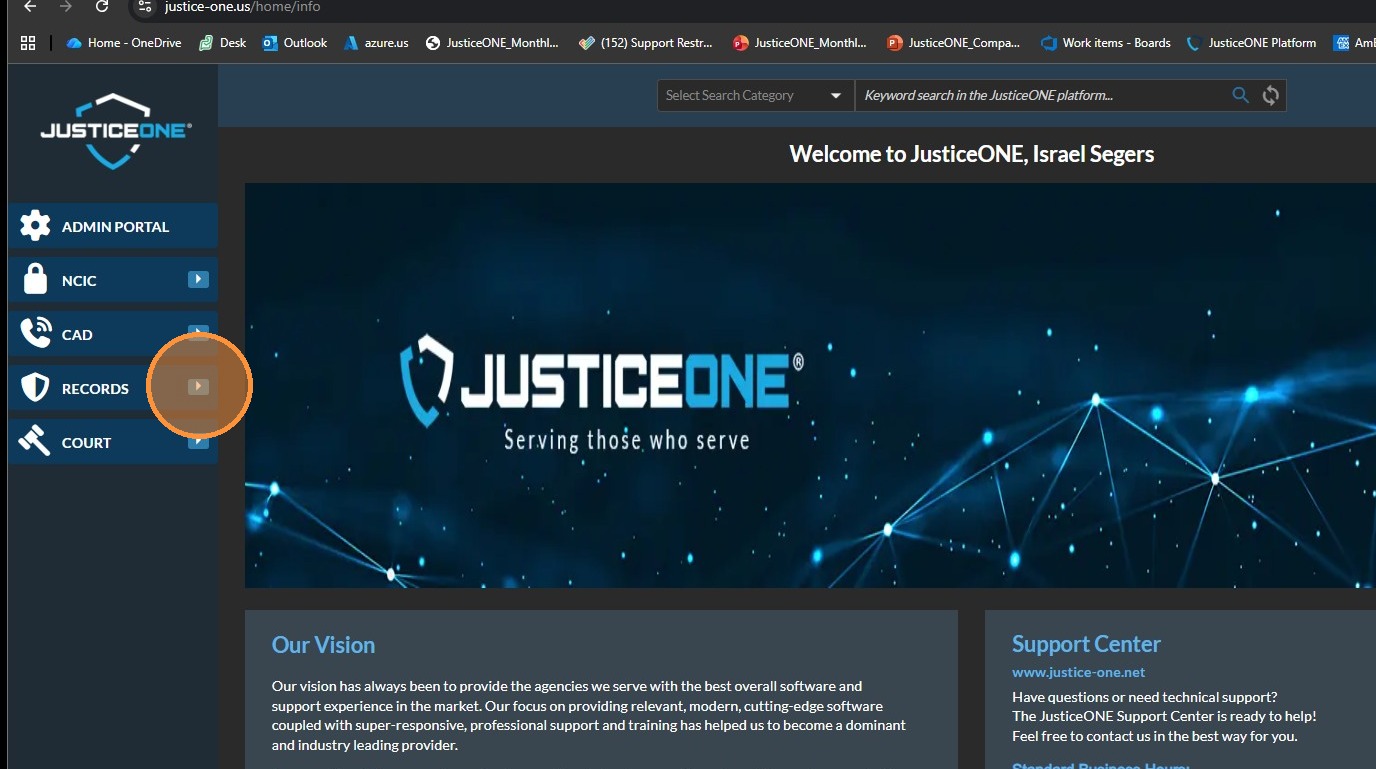
1. From anywhere in JusticeONE, click "Records"
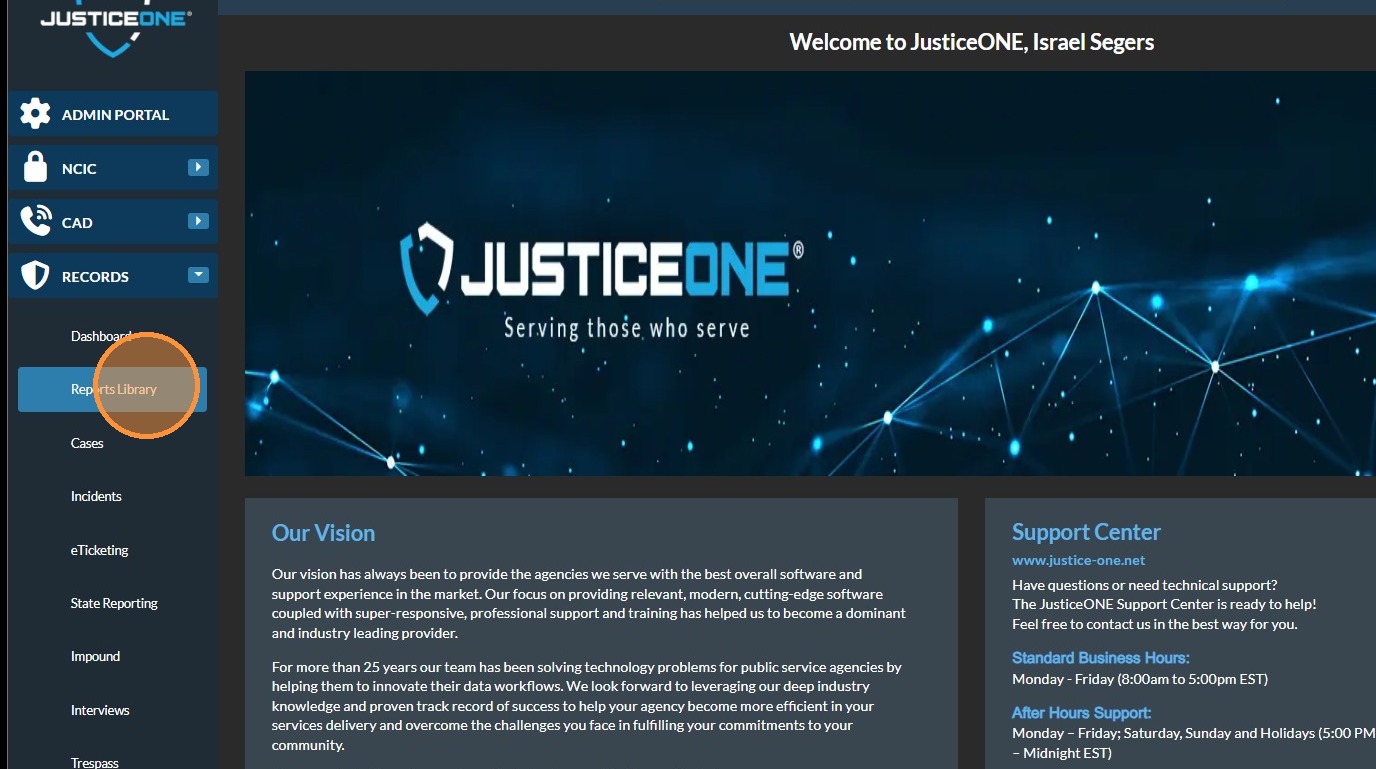
2. Click "Reports Library"
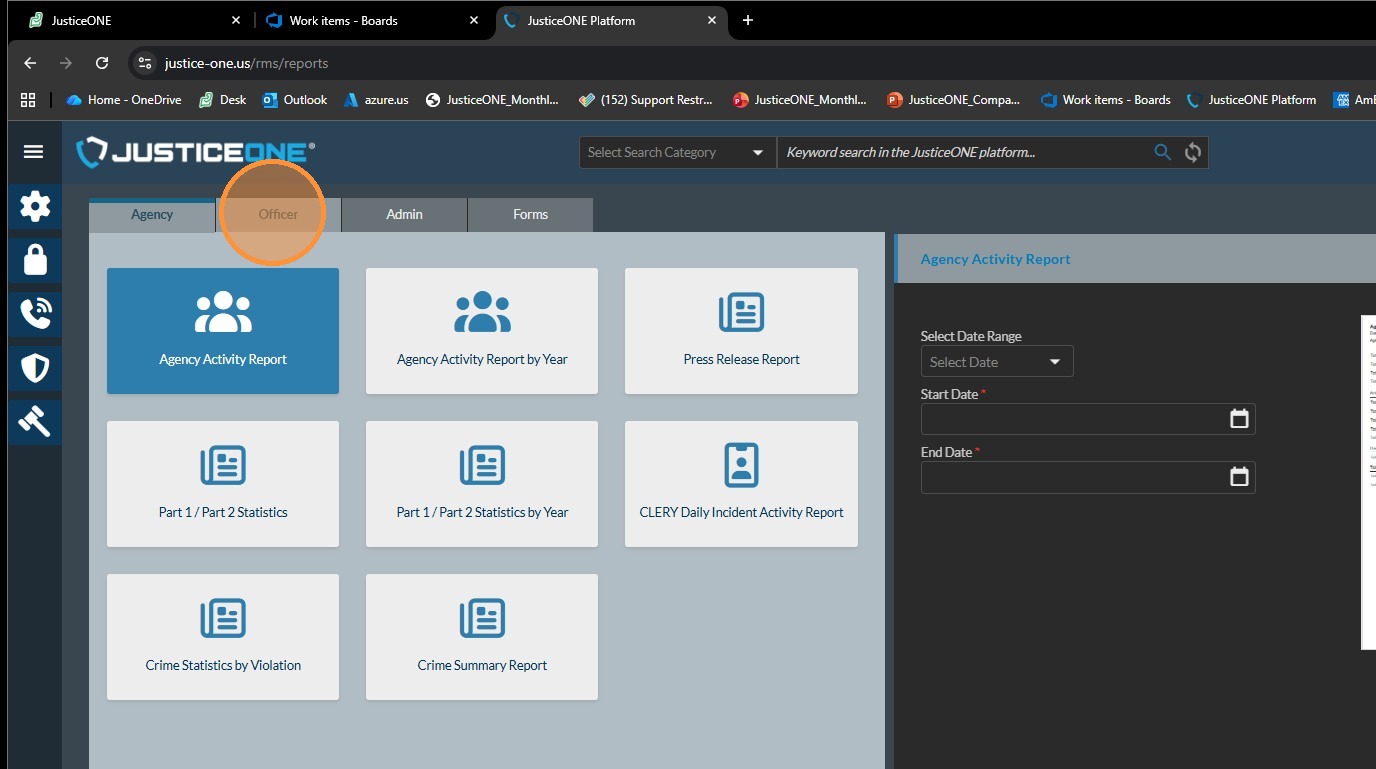
3. Click "Officer"
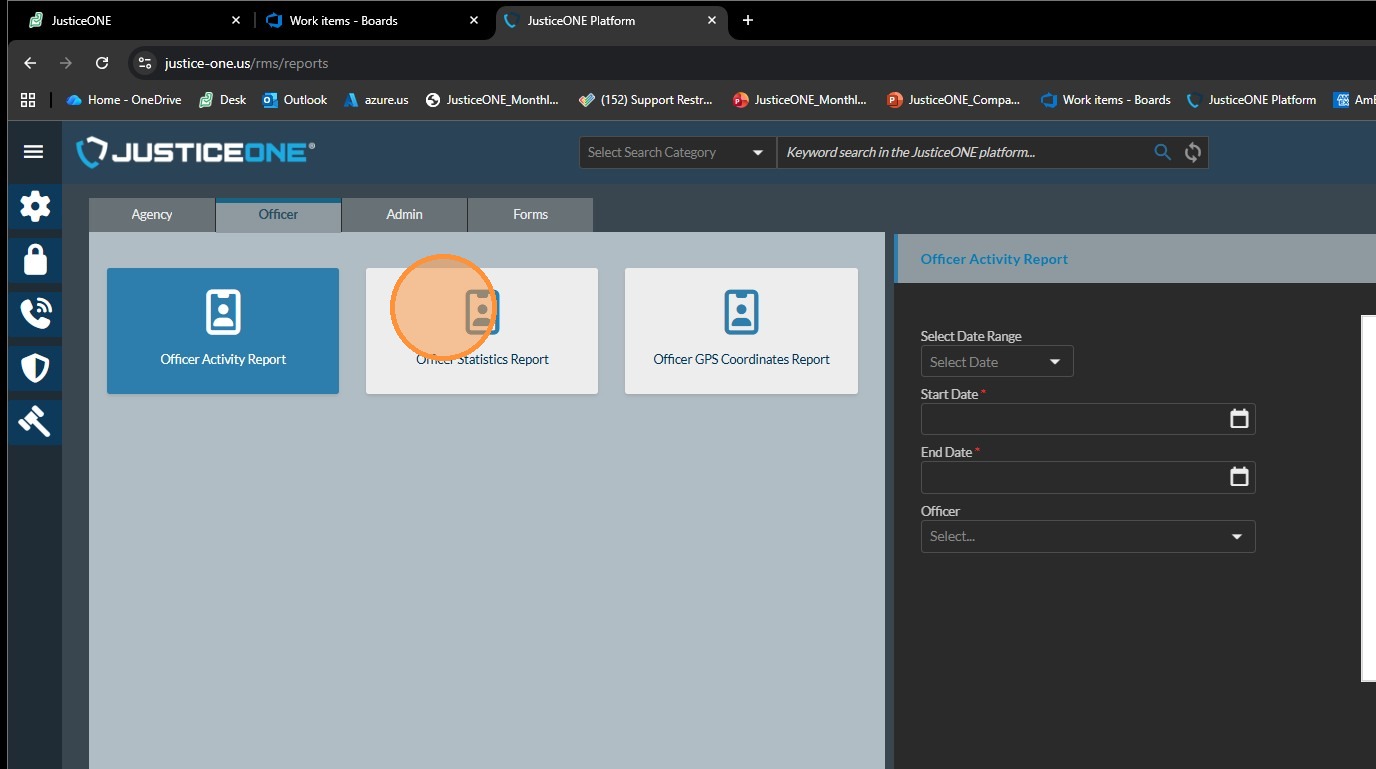
4. Click "Officer Statistics Report"
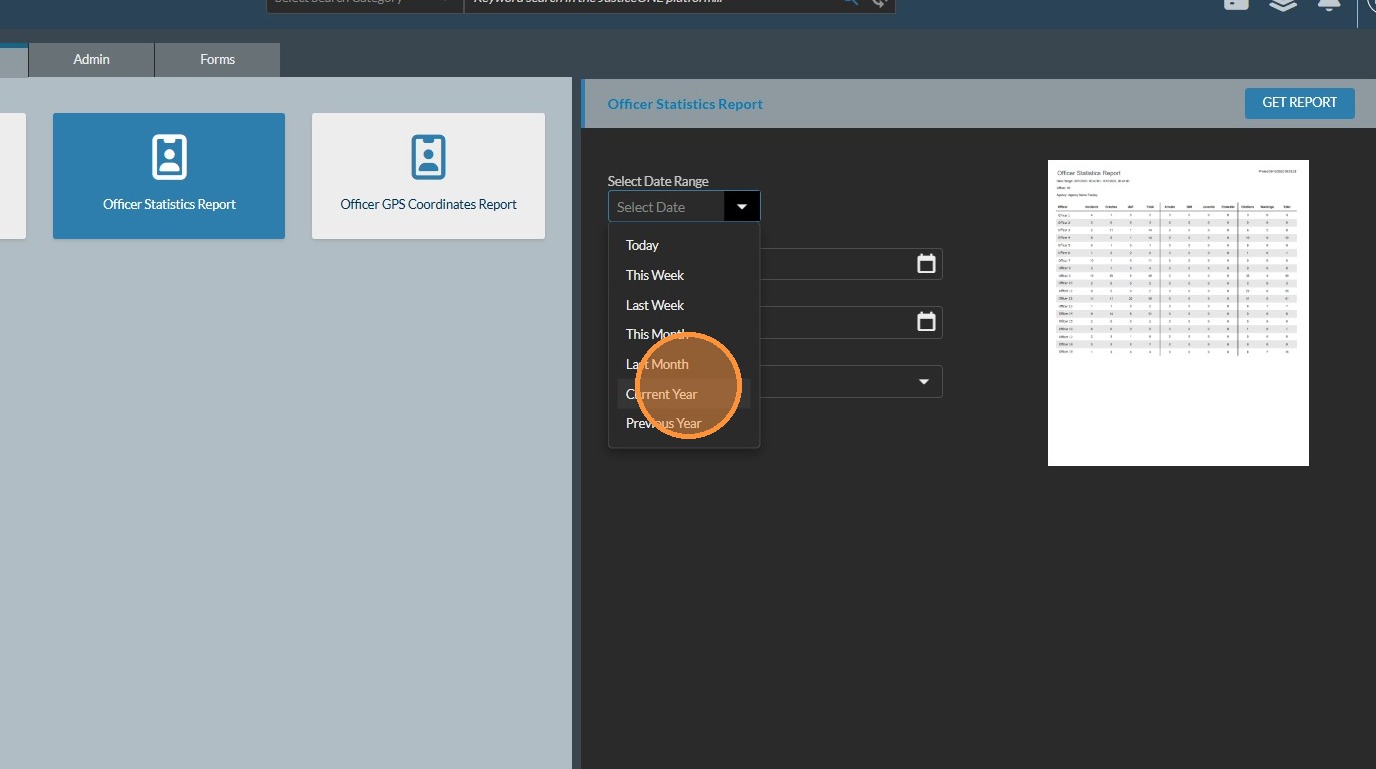
5. Select your date range, or enter a custom range using the start and end date
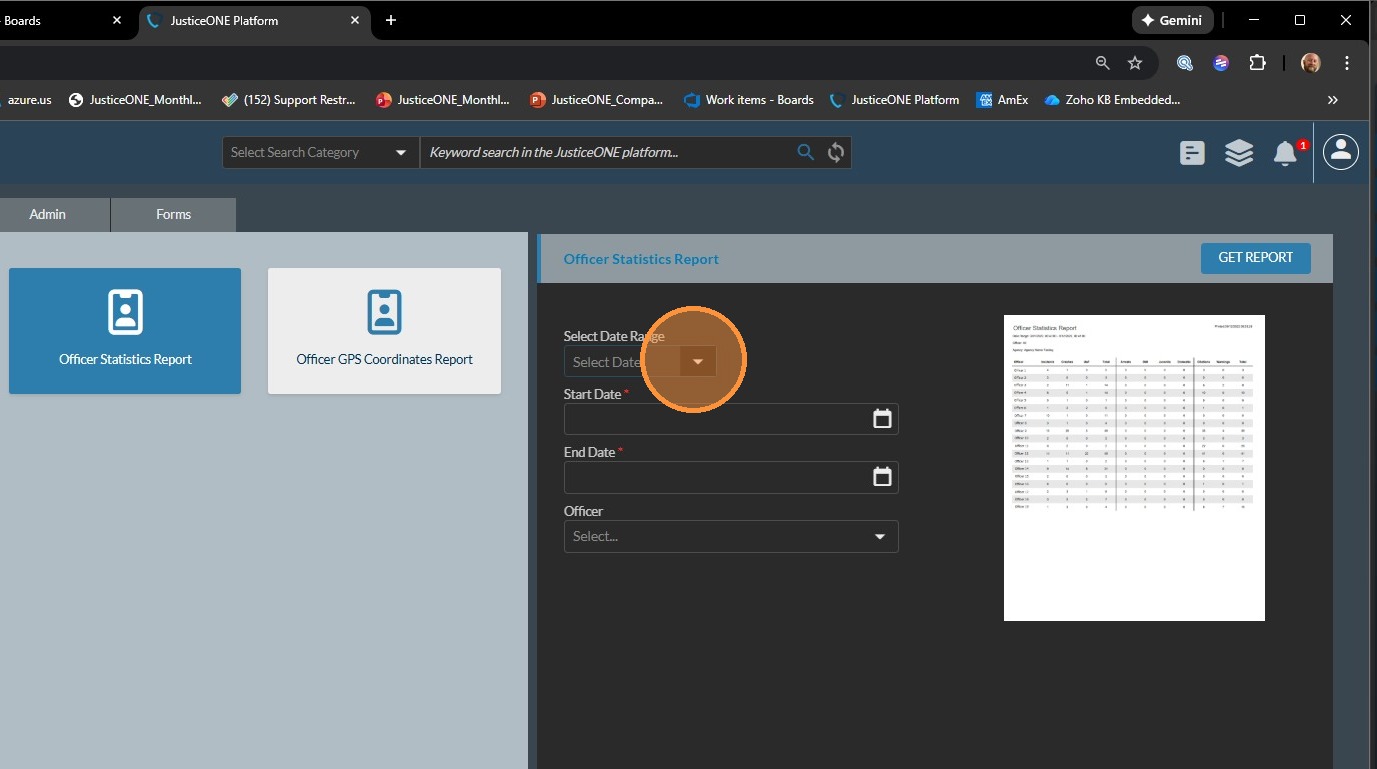
6. For this demonstration, we will use "current year"
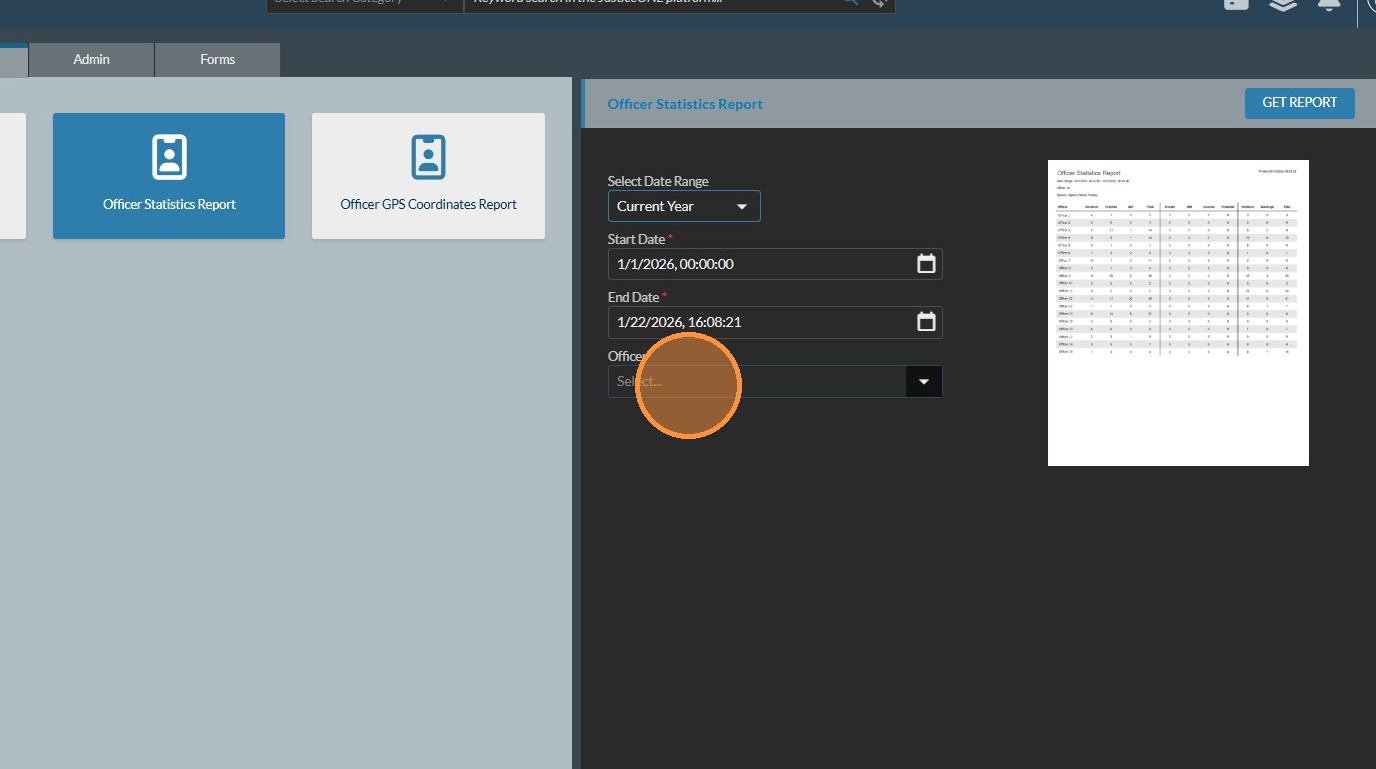
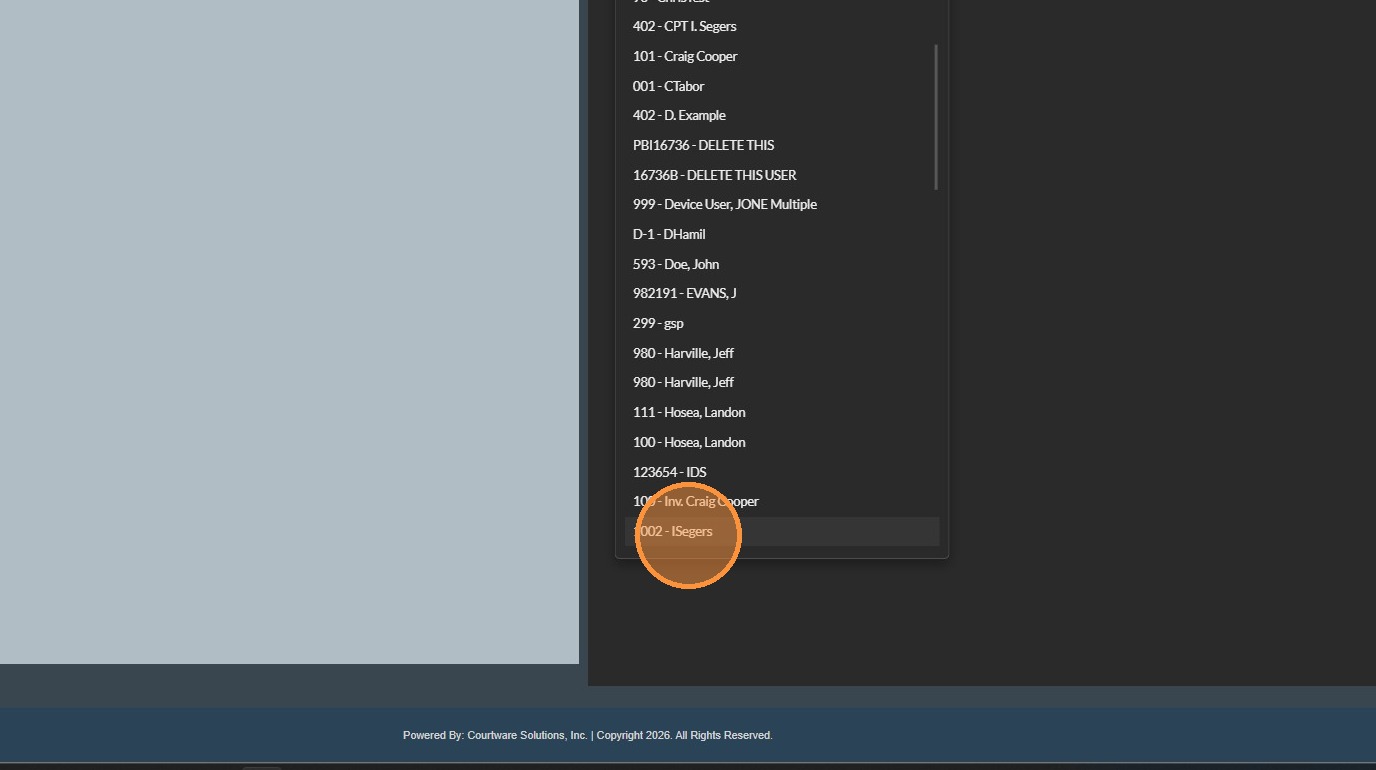
7. Select the desired officer
8. In this case we will use " 1002 - ISegers"
9. Click "GET REPORT"
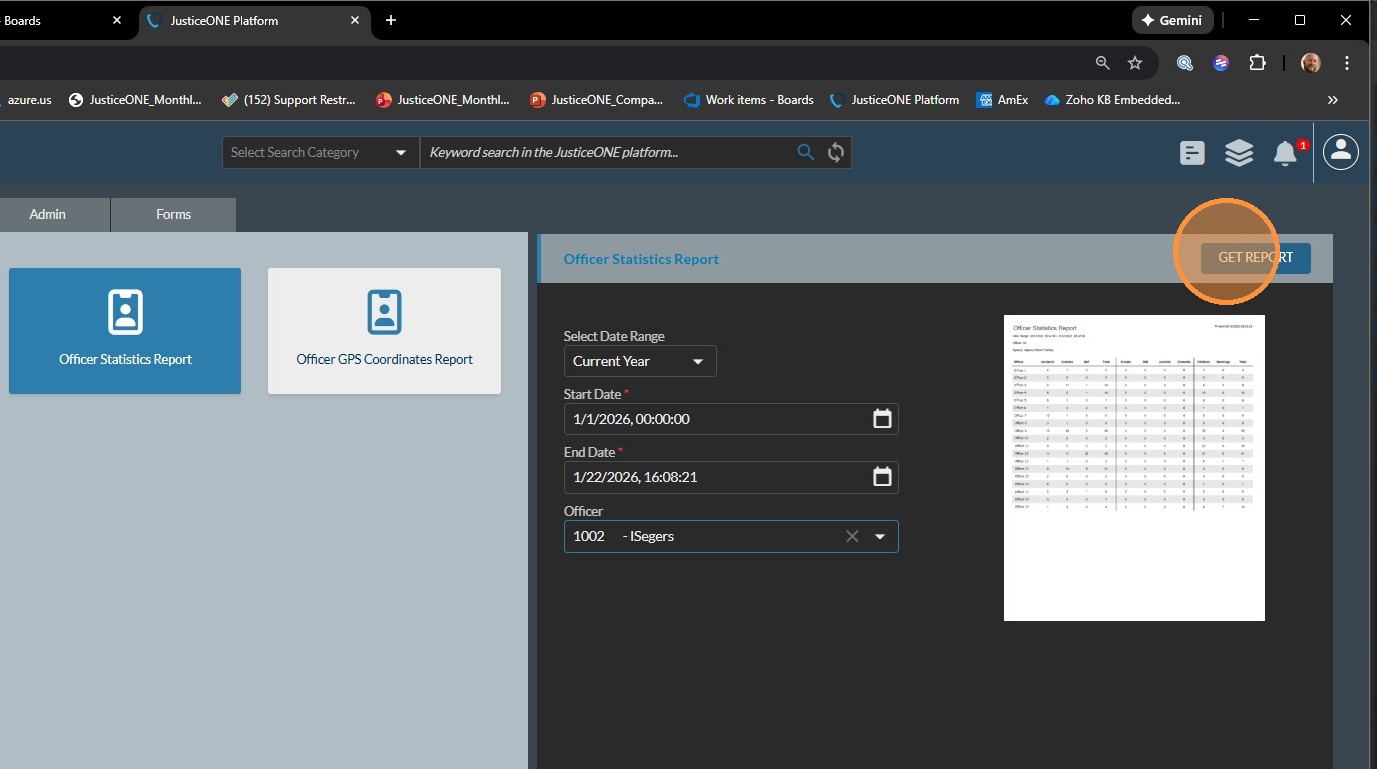
10. And the report will generate.
Once the report has generated, you can see stats for the following:
- Incident
- Crash
- UOF
- DUI
- Domestic Violence
- Juvenile
- Total Reports
- Misd. Arrests
- Felony Arrests
- Drug Arrests
- Total Arrests
- Speeding Citations
- Other Citations
- Warnings
We will go over the requirements for records to count toward each statistical entry.
1. Incident:
The system will count each incident report (Incident number containing "I" in the third position, i.e "26I000001", highlighted in yellow below) with an entry in "Reporting Officer" that matches the officer specified in the search criteria (highlighted in green below), and a "Report Date/Time" that matches the date range specified in the search criteria (highlighted in red below).
2. Crash:
The system behaves identically to Incident, except looking for Crash reports (Incident number containing "C" in the 3rd position i.e: "26C000001")
3. UOF:
The system behaves identically to Incident and Crash, except looking for UOF reports (incident containing "U" in the 3rd position).
4. DUI:
The system counts the number of reports in the specified time period where an offender is marked as DUI Involvement = "True" (highlighted in red below) and the arresting officer matches the officer specified in the criteria (highlighted in green below).
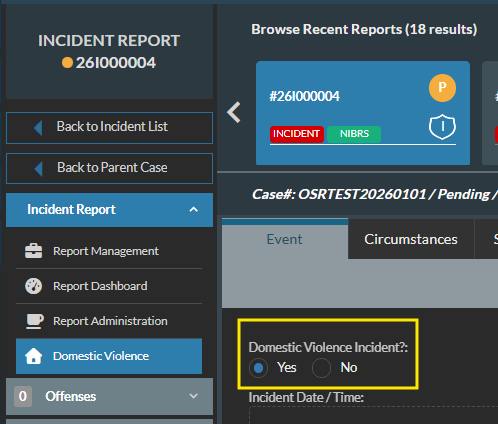
5. Domestic Violence:
Any incident created in the specified time period, by the specified officer, marked as "Domestic Violence Incident = Yes" (highlighted in yellow below).
6. Juvenile:
Any offender marked as "Arrested" = True where the date of arrest (marked in green below), minus the date of birth (marked in red below) is less than 18 years (where the offender is less than 18 at the time of the arrest).
7. Total Reports:
Total of all reports within the time range, where reporting officer = the criteria specified when running the report.
8. Misd. Arrests:
Total of all offenders arrested (marked as Arrested = True) where the violation has a violation code type of "Misdemeanor", and the arresting officer and arrest date match the criteria entered for the report.
- Note: This currently does not count codes marked "traffic", even though they may be misdemeanors. We are looking into addressing this.
9. Felony Arrests:
Total of all offenders arrested (marked as Arrested = True) where the violation has a violation code type of "Felony", and the arresting officer and arrest date match the criteria entered for the report.
10. Drug Arrests:
Total of all offenders arrested (marked as Arrested = True) where the violation has NIBRS Code of 35A (Drugs / Narcotic Violations), and the arresting officer and arrest date match the criteria entered for the report.
11. Total Arrests:
Total of all offenders arrested (marked as Arrested = True), and the arresting officer and arrest date match the criteria entered for the report.
Total of all offenders arrested (marked as Arrested = True), and the arresting officer and arrest date match the criteria entered for the report.
12. Speeding Citations:
All Citations (tickets) matching the date range and officer criteria where "Speeding" = True (green below), and "Warning" = False (red below).
13. Other Citations:
All citations (tickets) matching the date range and officer criteria where "Speeding" = False and "Warning" = False.
14. Warnings:
All citations (tickets) matching the date range and officer criteria where "Warning"= True.
If you have more questions regarding this report, or it is not behaving as expected, please create a support request so we can assist.
Related Articles
Pulling Statistics for Specific Offenses in JusticeONE RMS
1. Navigate to https://www.justice-one.us/home/info 2. Click "RECORDS" 3. Click "Incidents" 4. We need to make sure that "Offenses" are visible. If they are not, click on the "Grid Preferences" icon... 5. Click "Column Arrangement" 6. In the ...Pulling Specific Activity Code Statistics
1. Navigate to https://www.justice-one.us and log in 2. Click on the hamburger menu 3. Click "Activity Log" 4. Filter for time period first, entering the begin date 5. ... 6. and the end date 7. ... 8. Then click "GO" 9. Once the data is populated, ...Searching for Specific Evidence Types in JusticeONE RMS
1. Navigate to https://www.justice-one.us/home/info 2. Click on the hamburger menu... 3. and select "Evidence" 4. Select your begin date 5. ... 6. Then select your end date... 7. ... 8. Select the first evidence room to work with. If your search ...Adding Logos and QR Codes in JusticeONE Report Customization
Adding Logos and QR codes in Report Customization (FTA Courtesy Letters, Reschedule Template, etc.) Navigate to the Admin Portal. Go to “System Setup” and select “Report Customization” in the dropdown menu. Locate your Logo and use the “Snipping ...Change a Report Type in JusticeONE Admin Portal
1. Navigate to https://www.justice-one.us/home/info 2. Click "ADMIN PORTAL" 3. Click "Lookup Values" 4. Click "Records Lookups" 5. Click "Select" 6. Click "Cases / Reports" 7. Click "INCIDENT" 8. Click "REPORT TYPE" 9. Click the pencil icon to the ...