Change a Report Type in JusticeONE Admin Portal
1. Navigate to https://www.justice-one.us/home/info
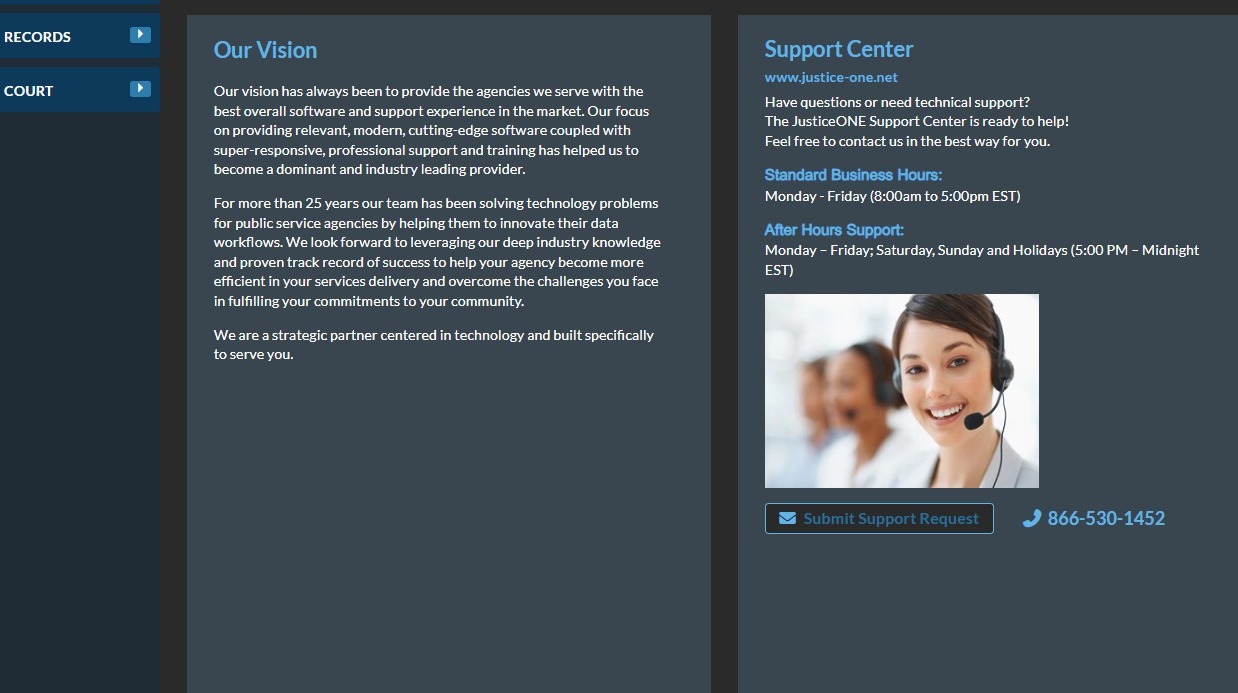
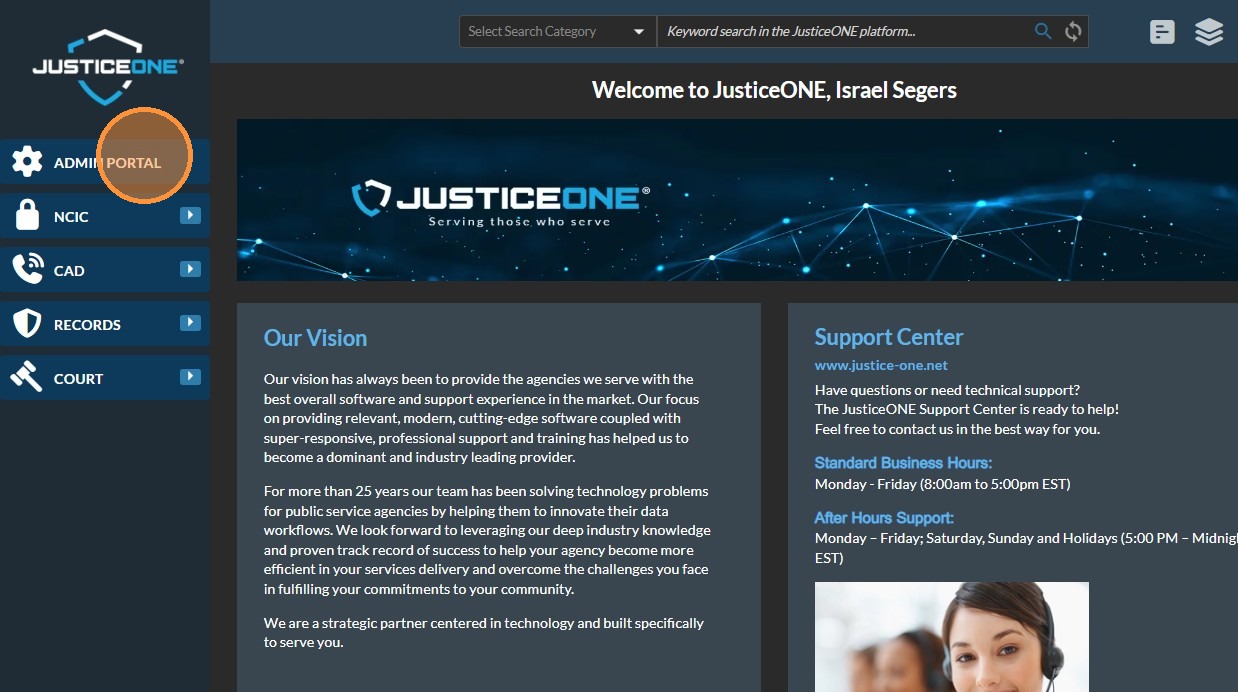
2. Click "ADMIN PORTAL"
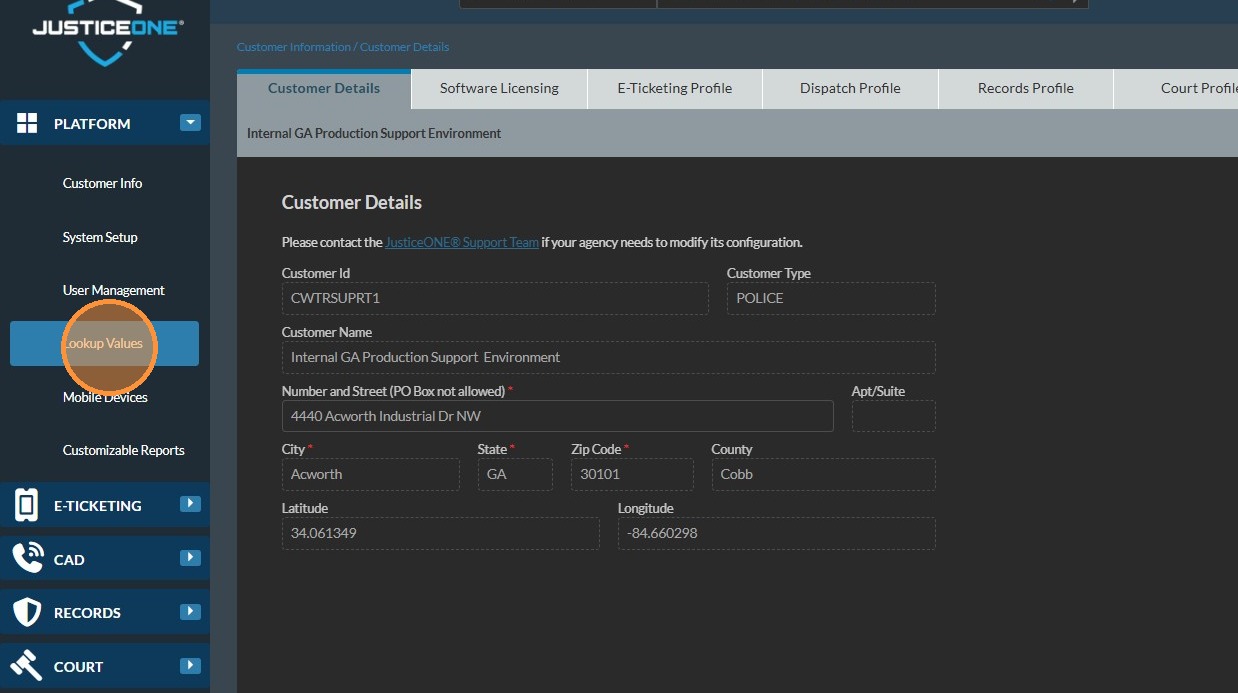
3. Click "Lookup Values"
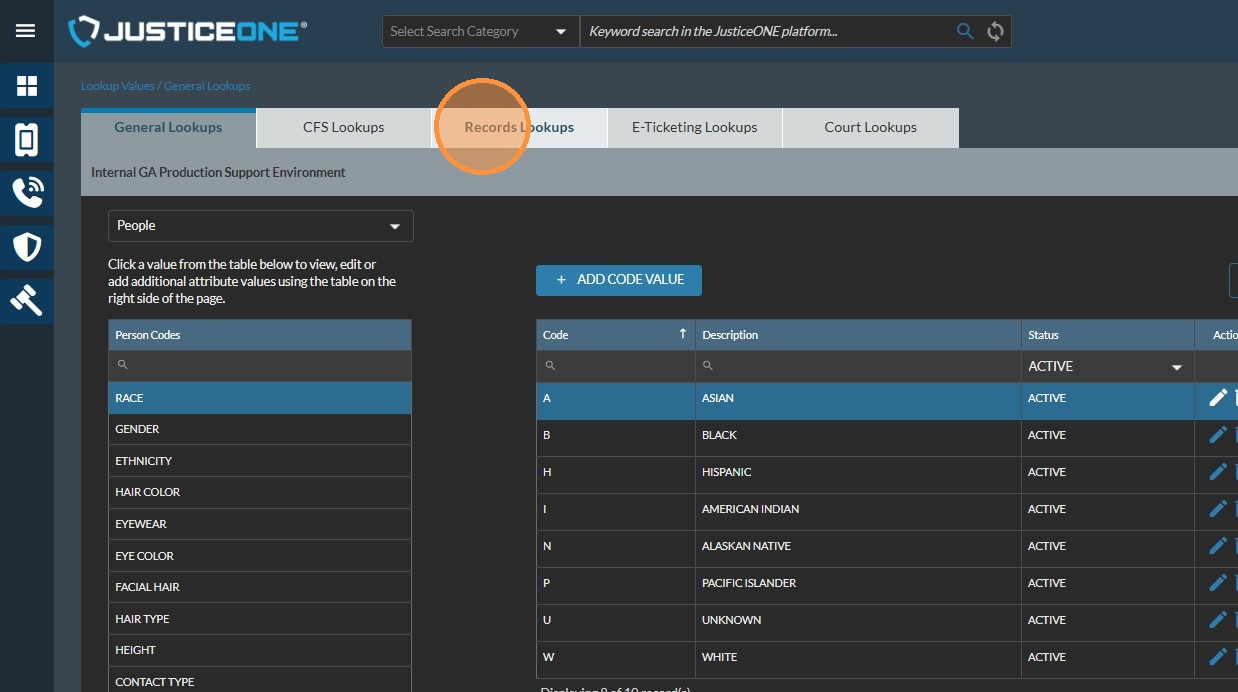
4. Click "Records Lookups"
5. Click "Select"
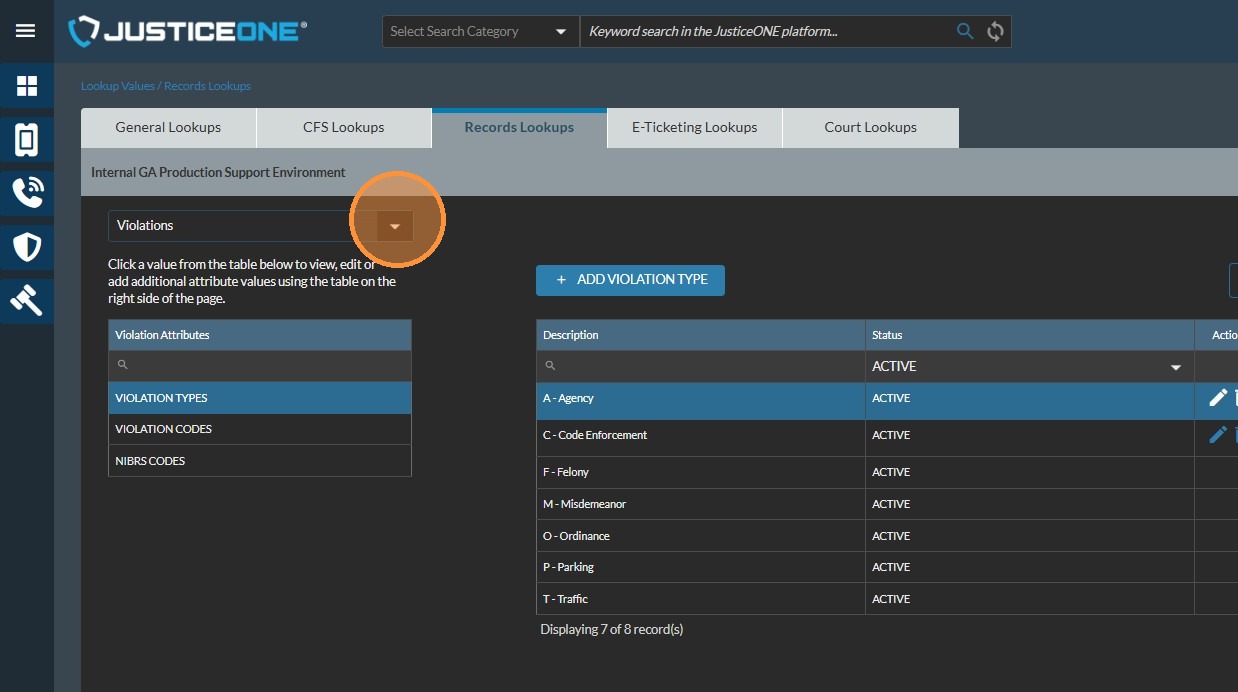
6. Click "Cases / Reports"
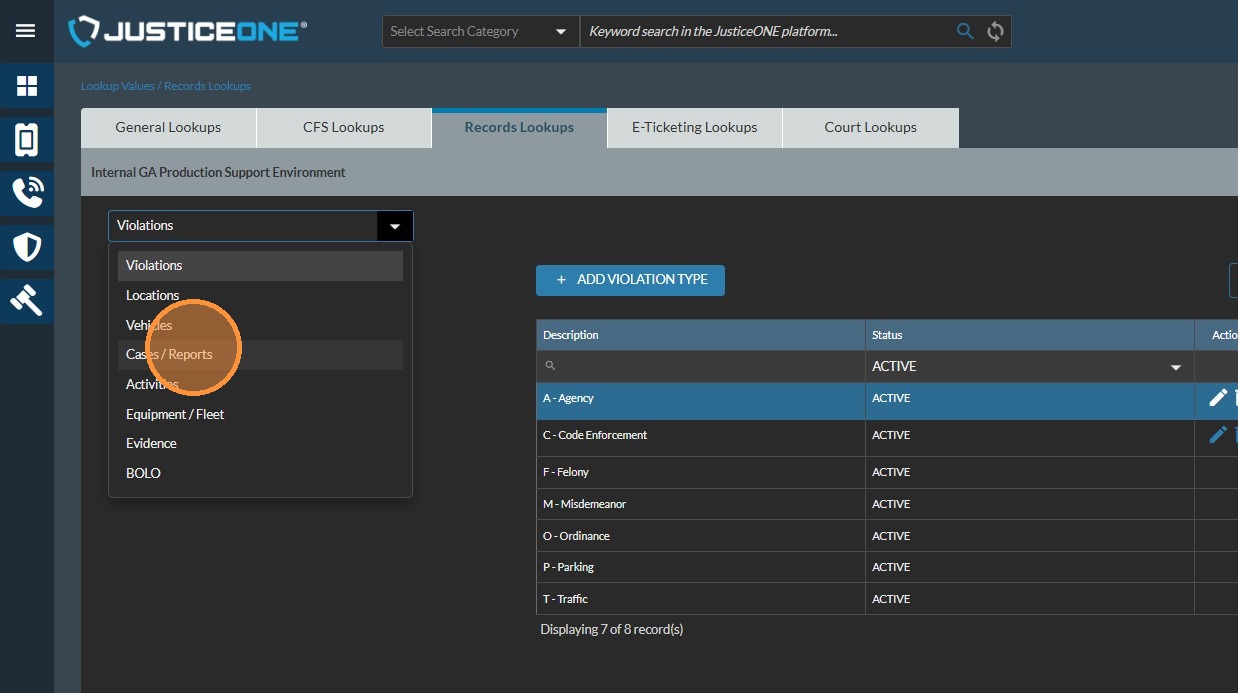
7. Click "INCIDENT"
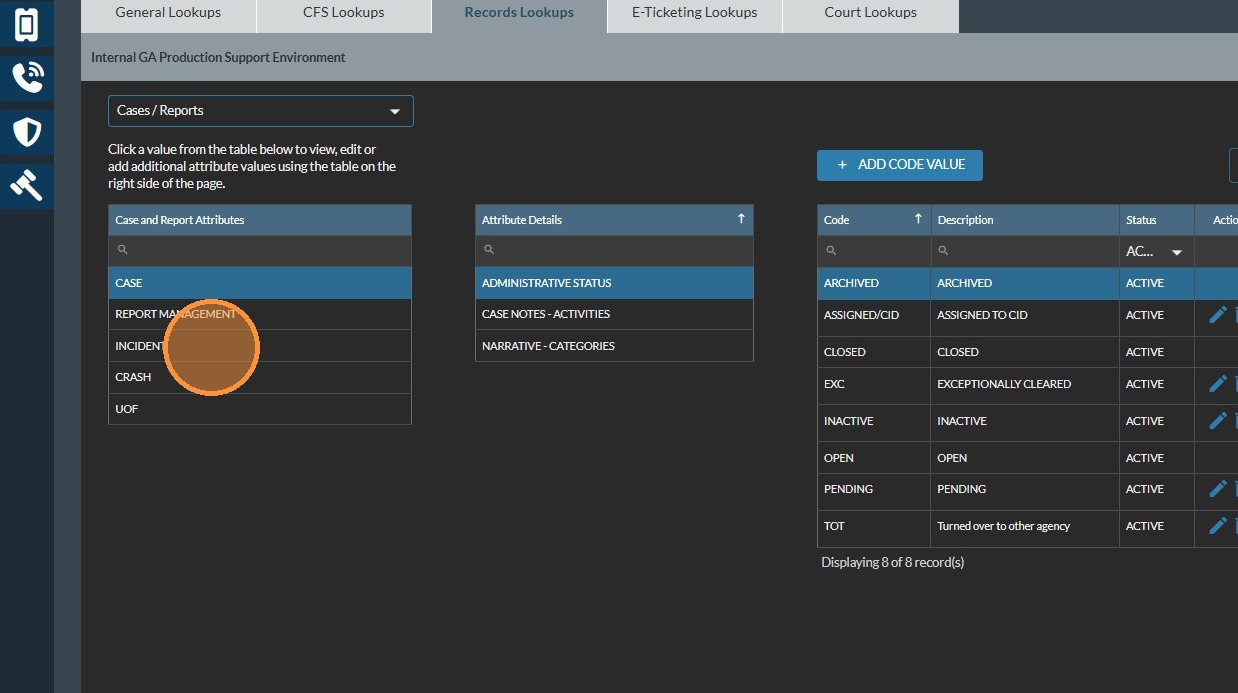
8. Click "REPORT TYPE"
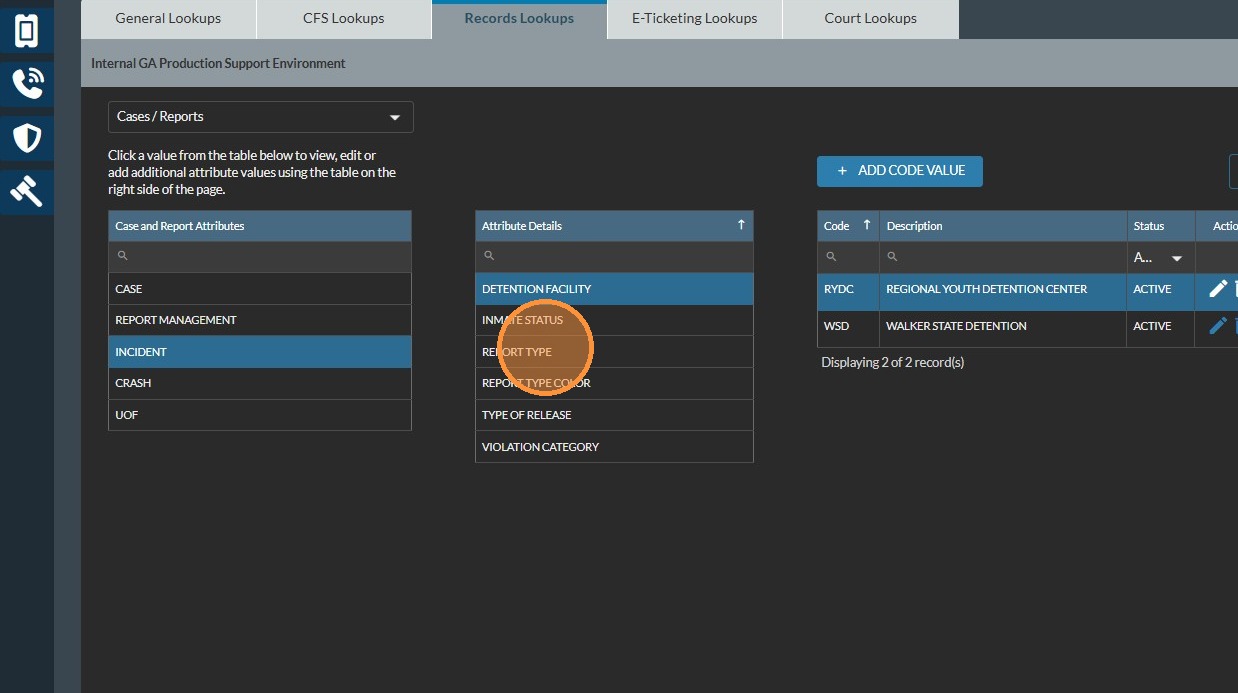
9. Click the pencil icon to the right of the item you wish to edit
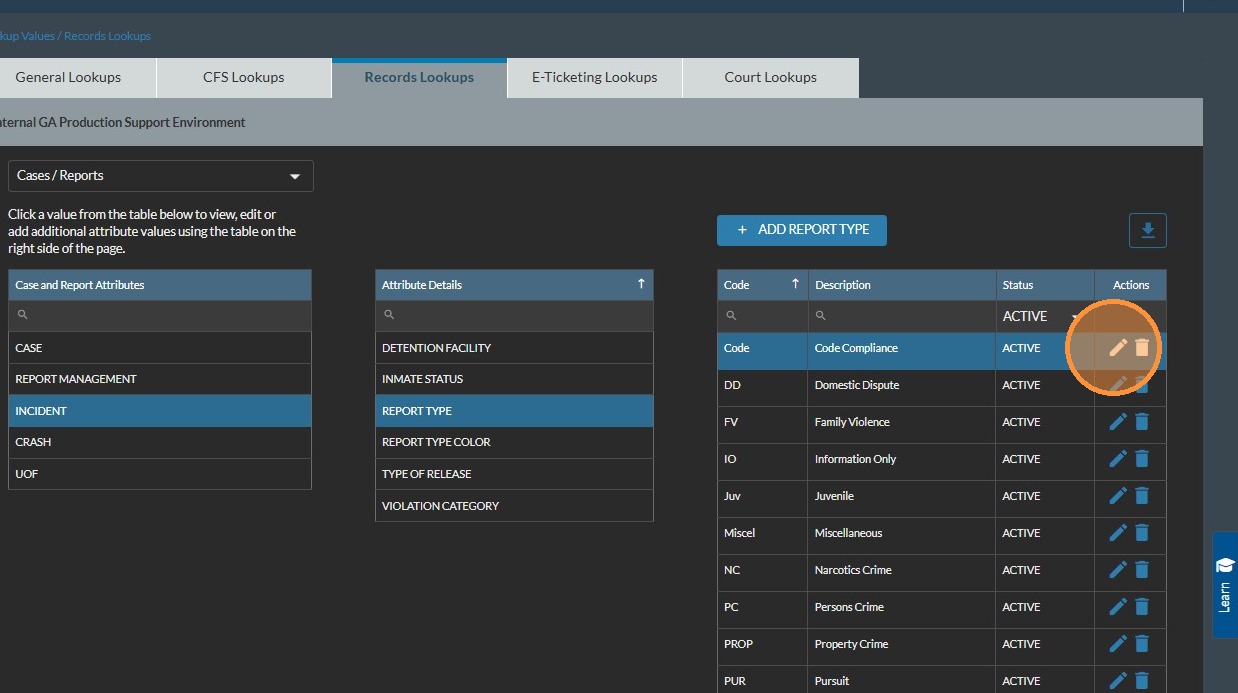
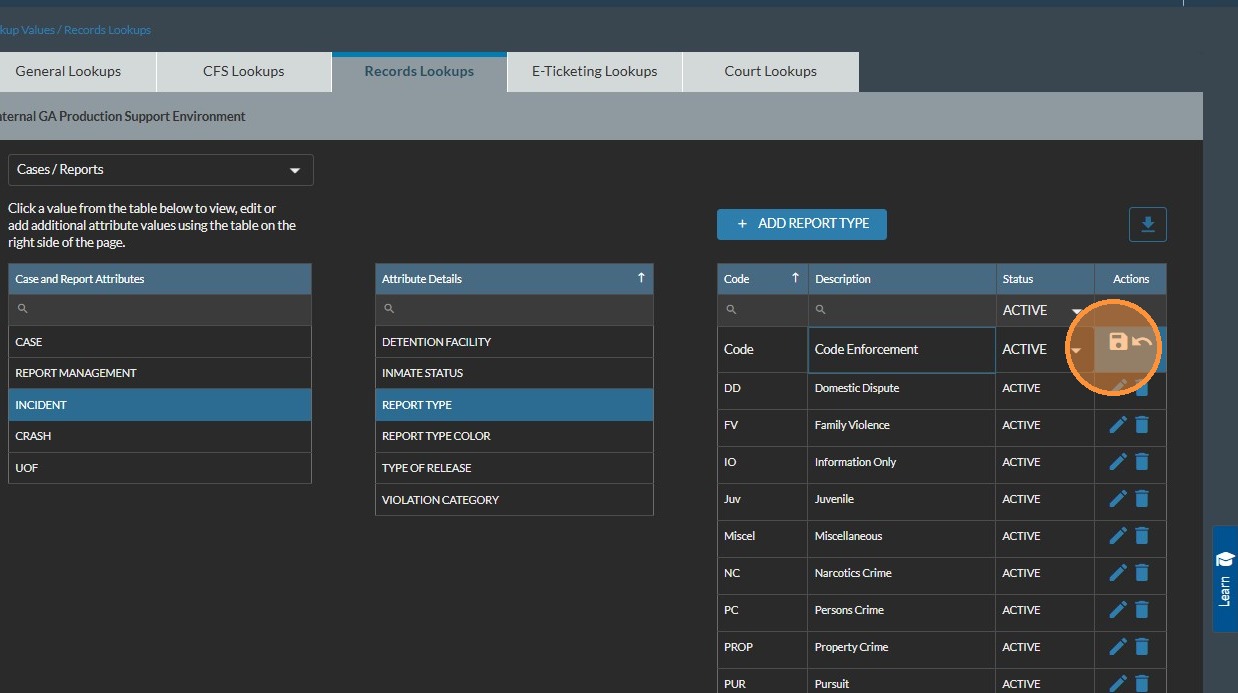
10. Edit the report type as desired
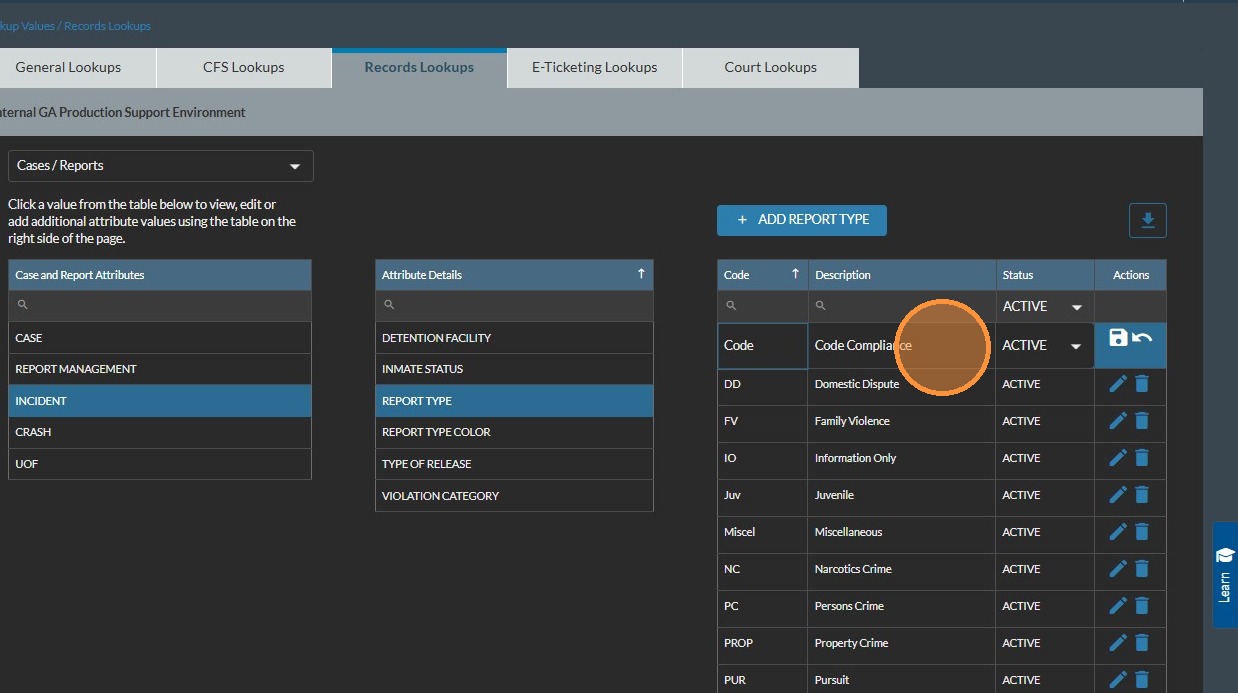
11. Click the disk to save the record.
If you are unable to edit the record, or access the Admin Portal, please contact your agency administrator. If you are an agency administrator, and need further assistance with changing a report type, please contact JusticeONE Support, and mention this article.
Related Articles
Adding Logos and QR Codes in JusticeONE Report Customization
Adding Logos and QR codes in Report Customization (FTA Courtesy Letters, Reschedule Template, etc.) Navigate to the Admin Portal. Go to “System Setup” and select “Report Customization” in the dropdown menu. Locate your Logo and use the “Snipping ...Report Data Sources: Officer Statistics Report
The Officer Statistics Report in JusticeONE RMS provides a summary of activity for a single officer through any specified time period. To run the report, follow the directions below: 1. From anywhere in JusticeONE, click "Records" 2. Click "Reports ...Welcome to the JusticeONE Customer Support Portal
We are thrilled to introduce the **JusticeONE Customer Support Portal** — your one-stop resource for all support and service needs. Whether you need help resolving an issue, accessing resources, or managing your support tickets, this portal offers a ...Adding a Violation Code in JusticeONE Admin Portal
To add a Violation Code to the JusticeONE Platform: Open a web browser and navigate to https://justice-one.us Login with administrator credentials. If you do not have administrator credentials, please contact someone at your agency who can assist ...Report Customization in Admin Portal
How to customize the standardized report options. Go to the Admin Portal | System Setup | Report Customization | Courtesy Letter Reminder | Update wording | Save. You can choose from one of the following: Reschedule Template Courtesy Letter Template ...