Pulling Specific Activity Code Statistics
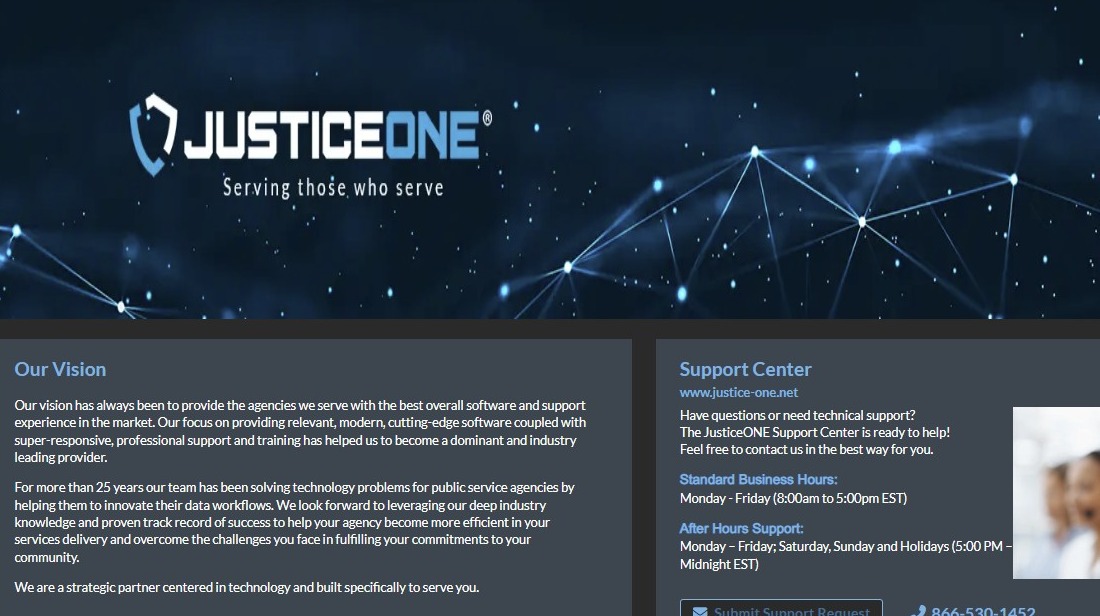
2. Click on the hamburger menu
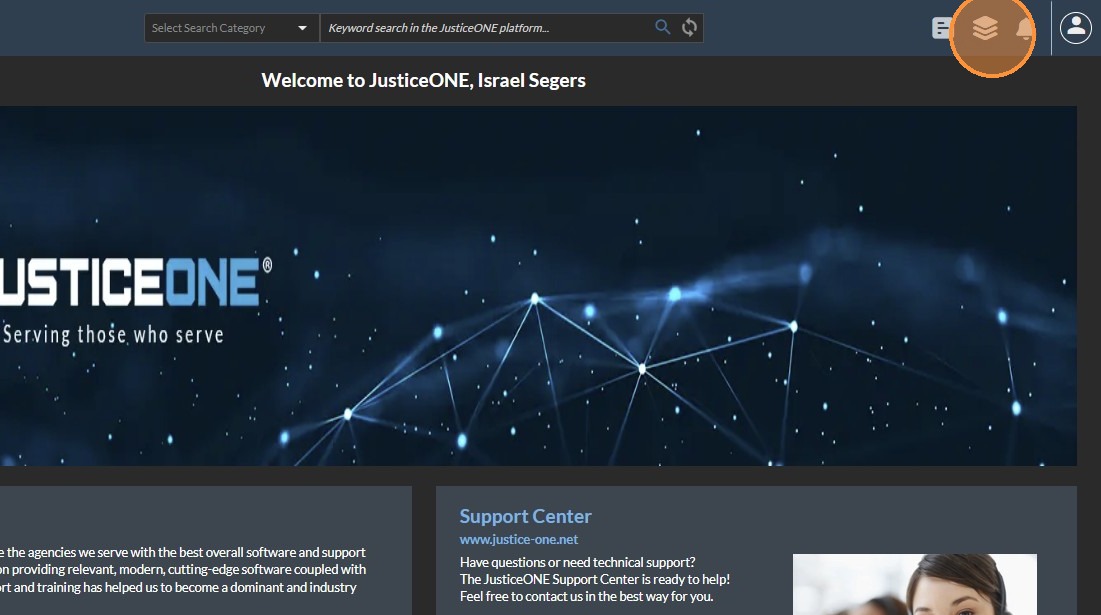
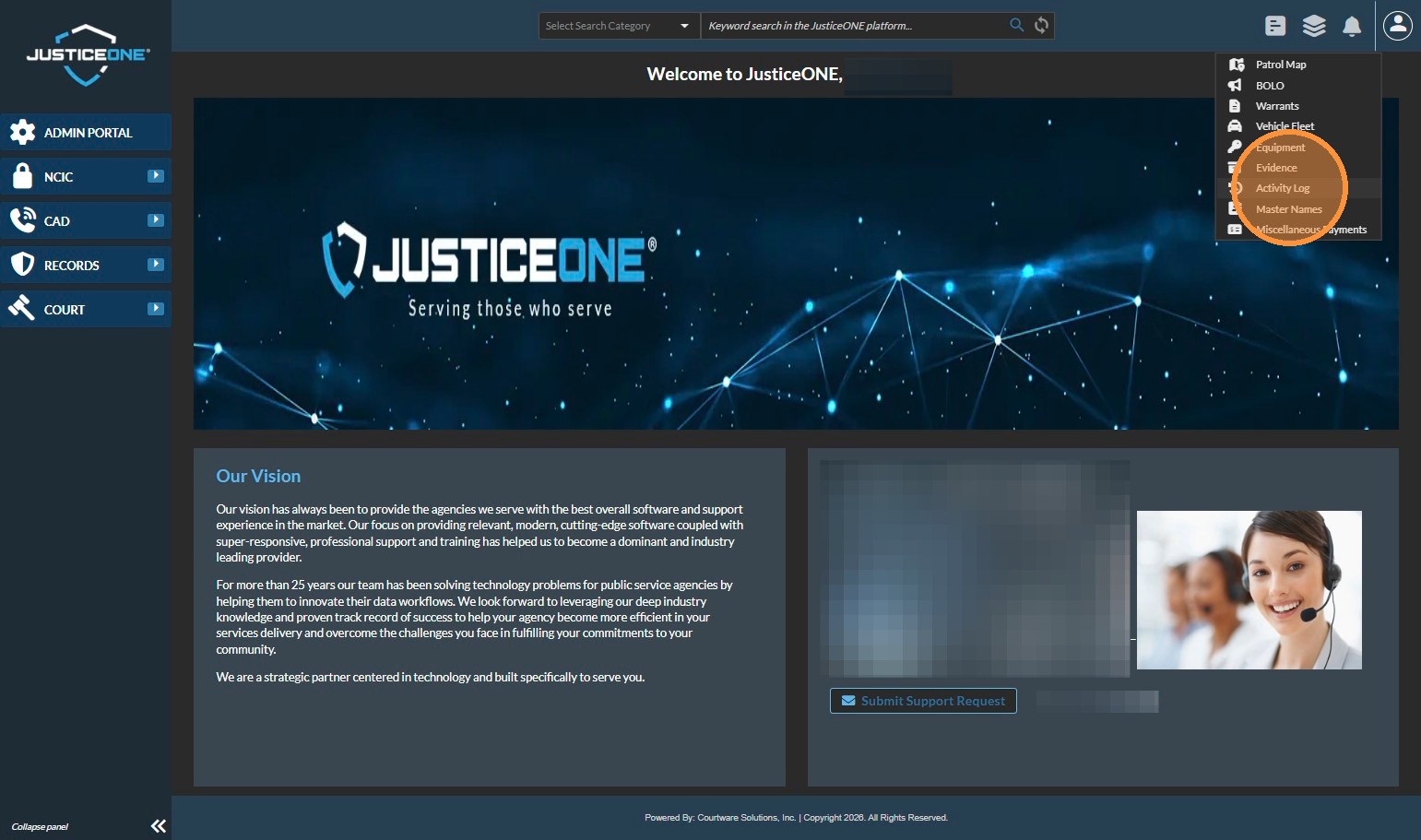
3. Click "Activity Log"
4. Filter for time period first, entering the begin date
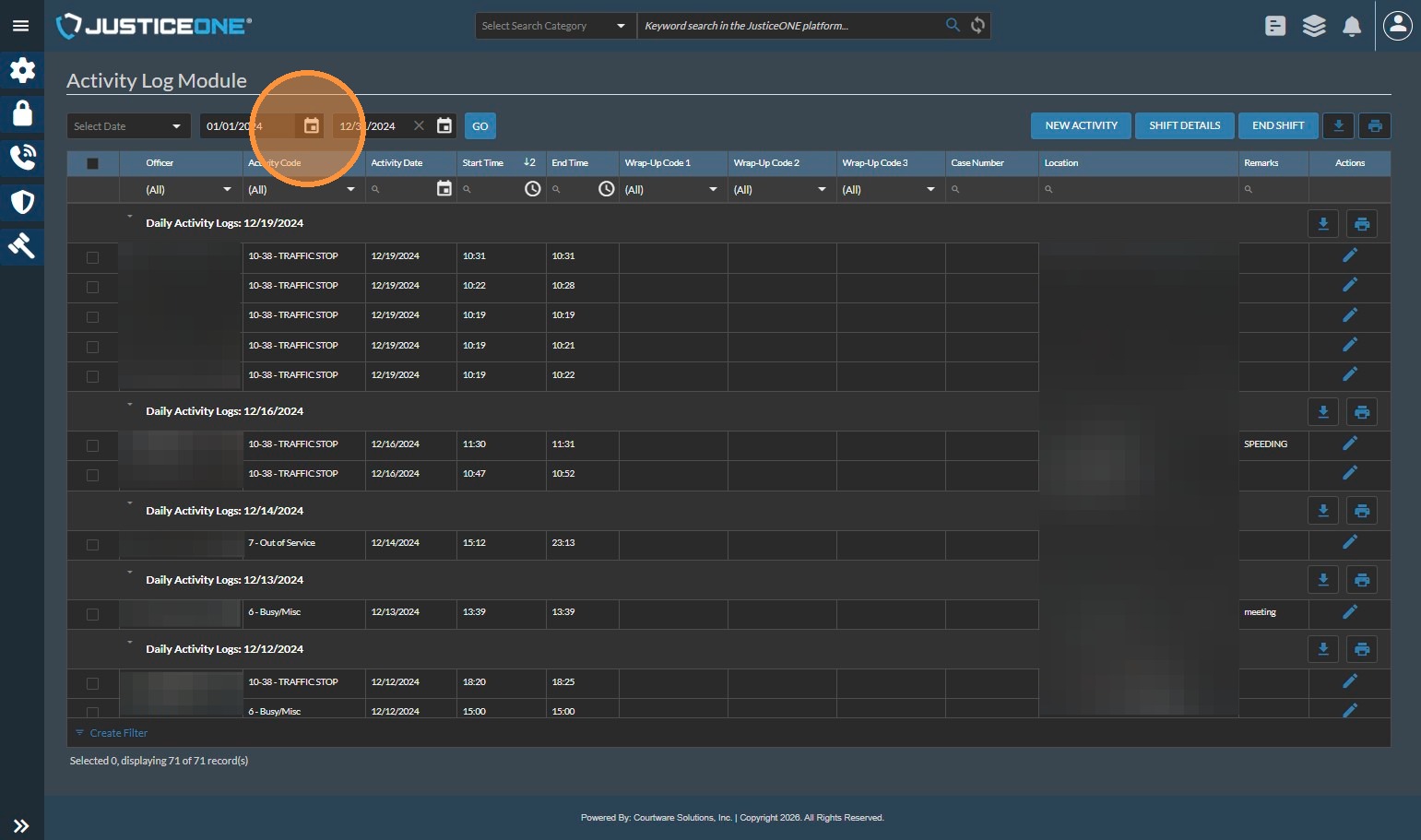
5. ...
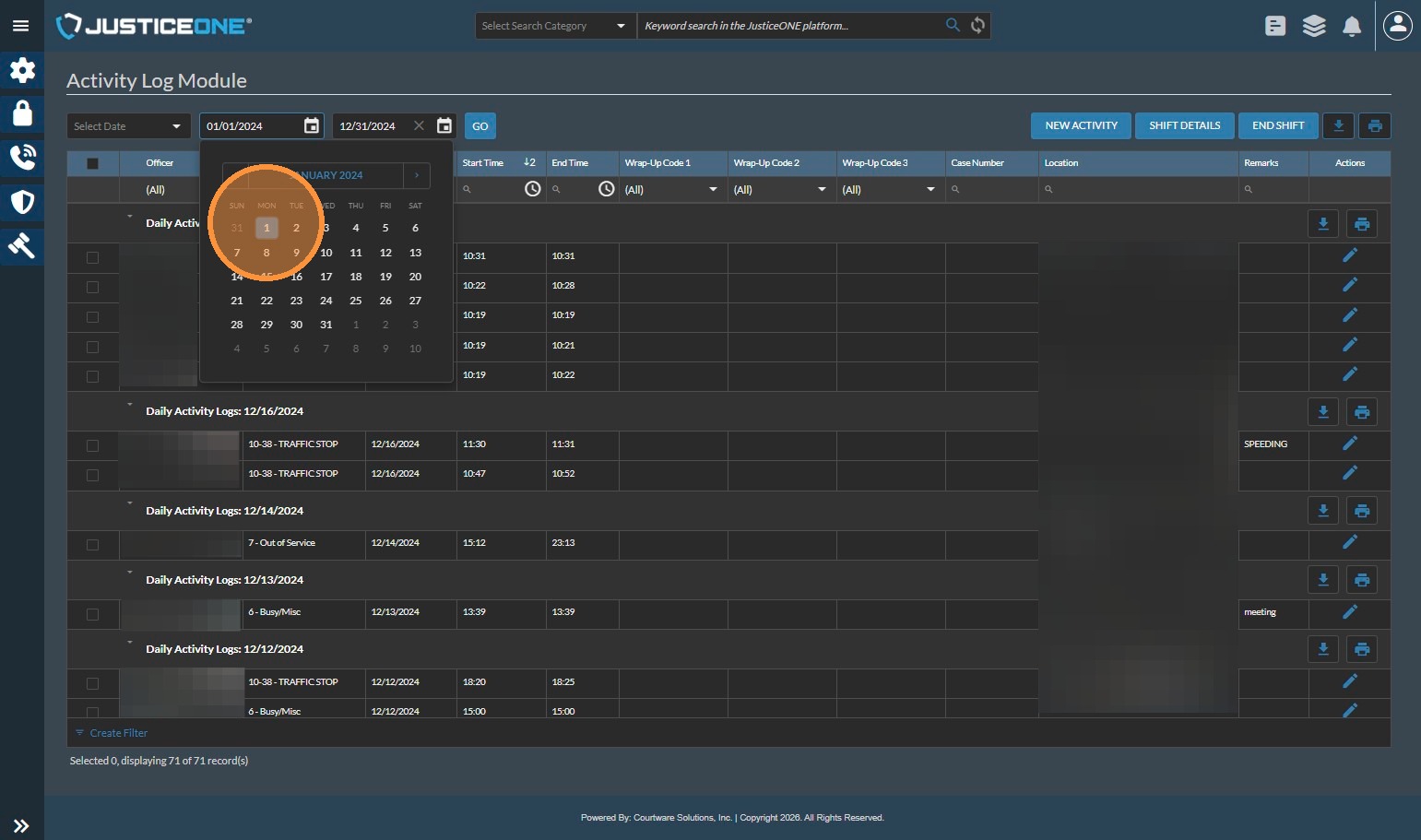
6. and the end date
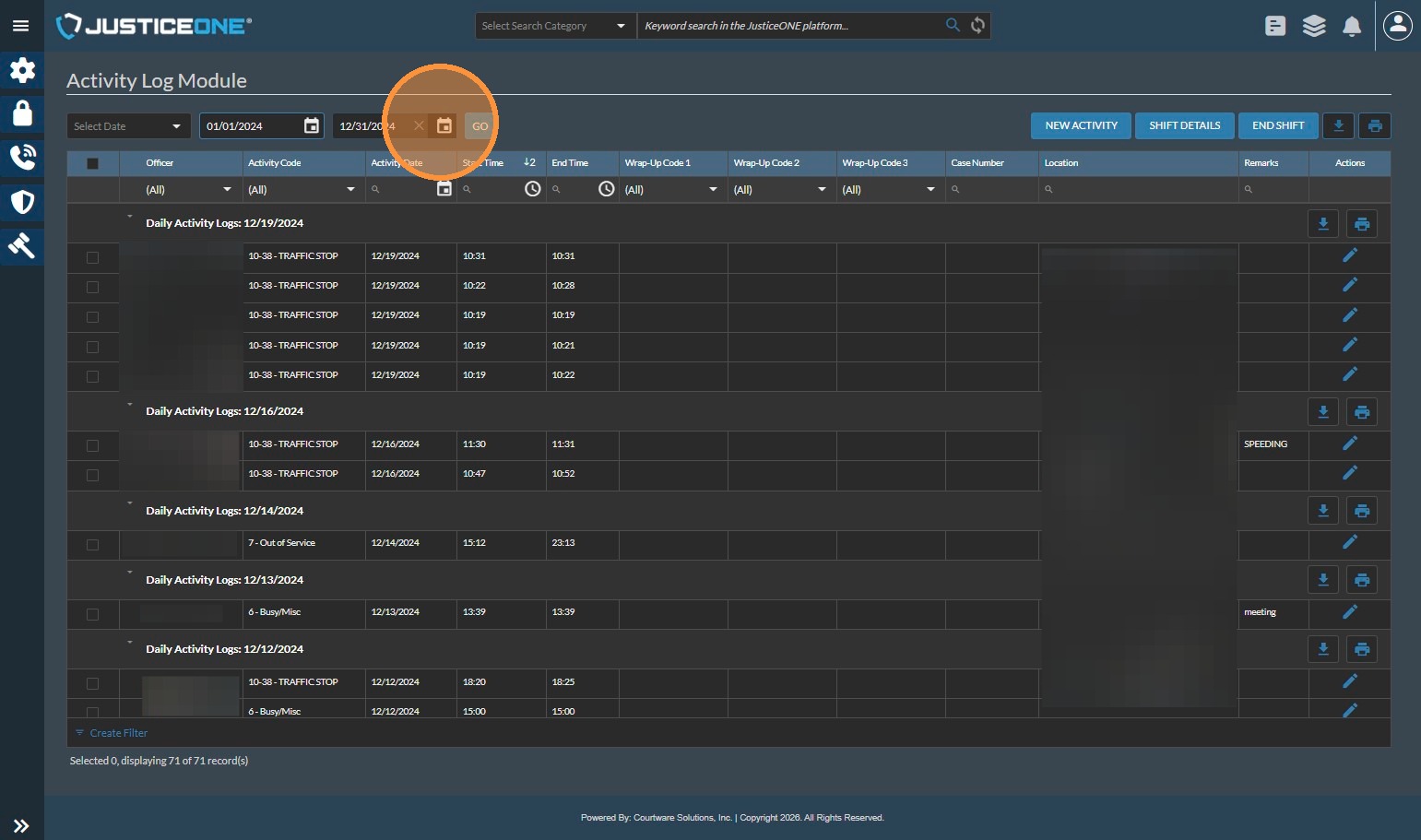
7. ...
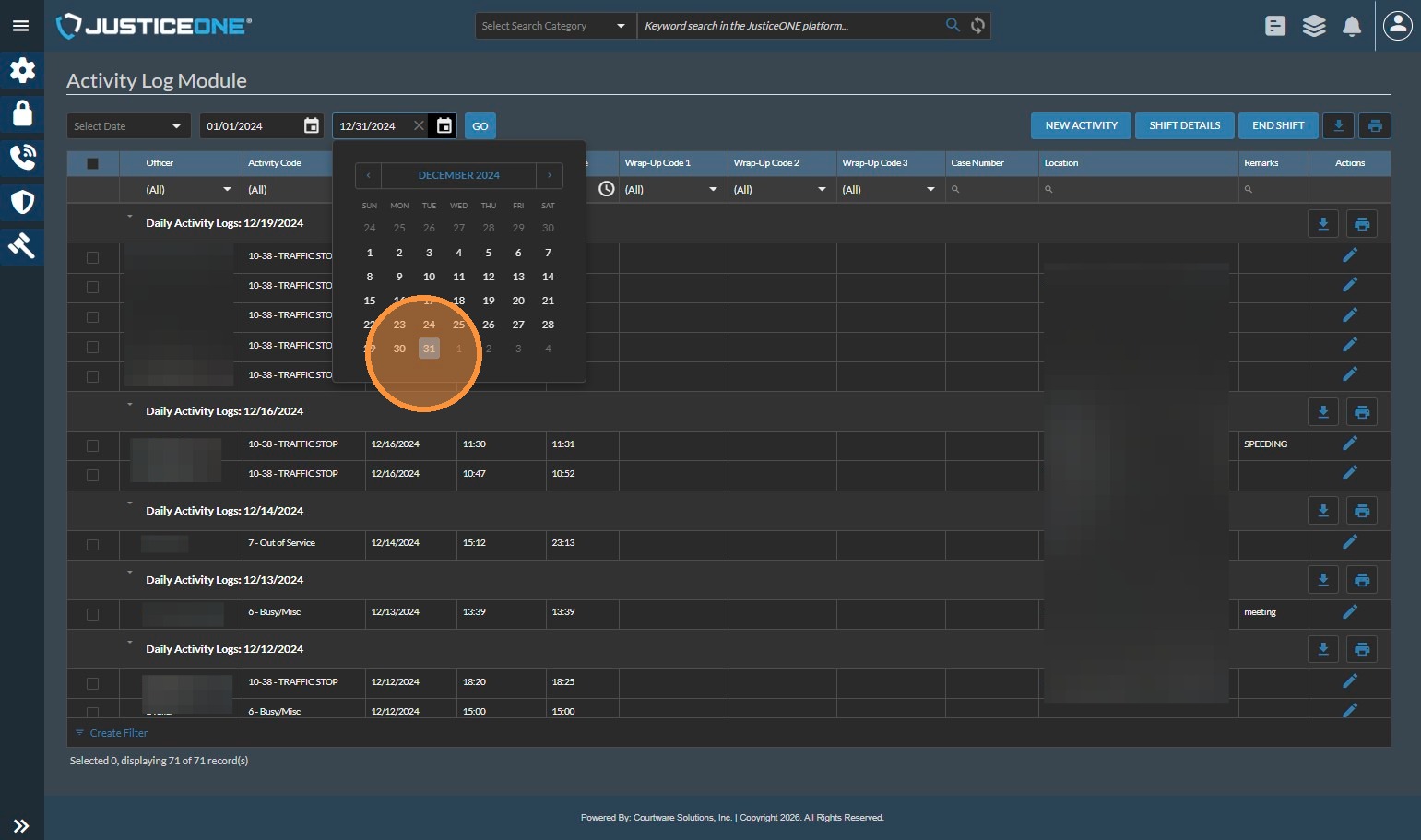
8. Then click "GO"
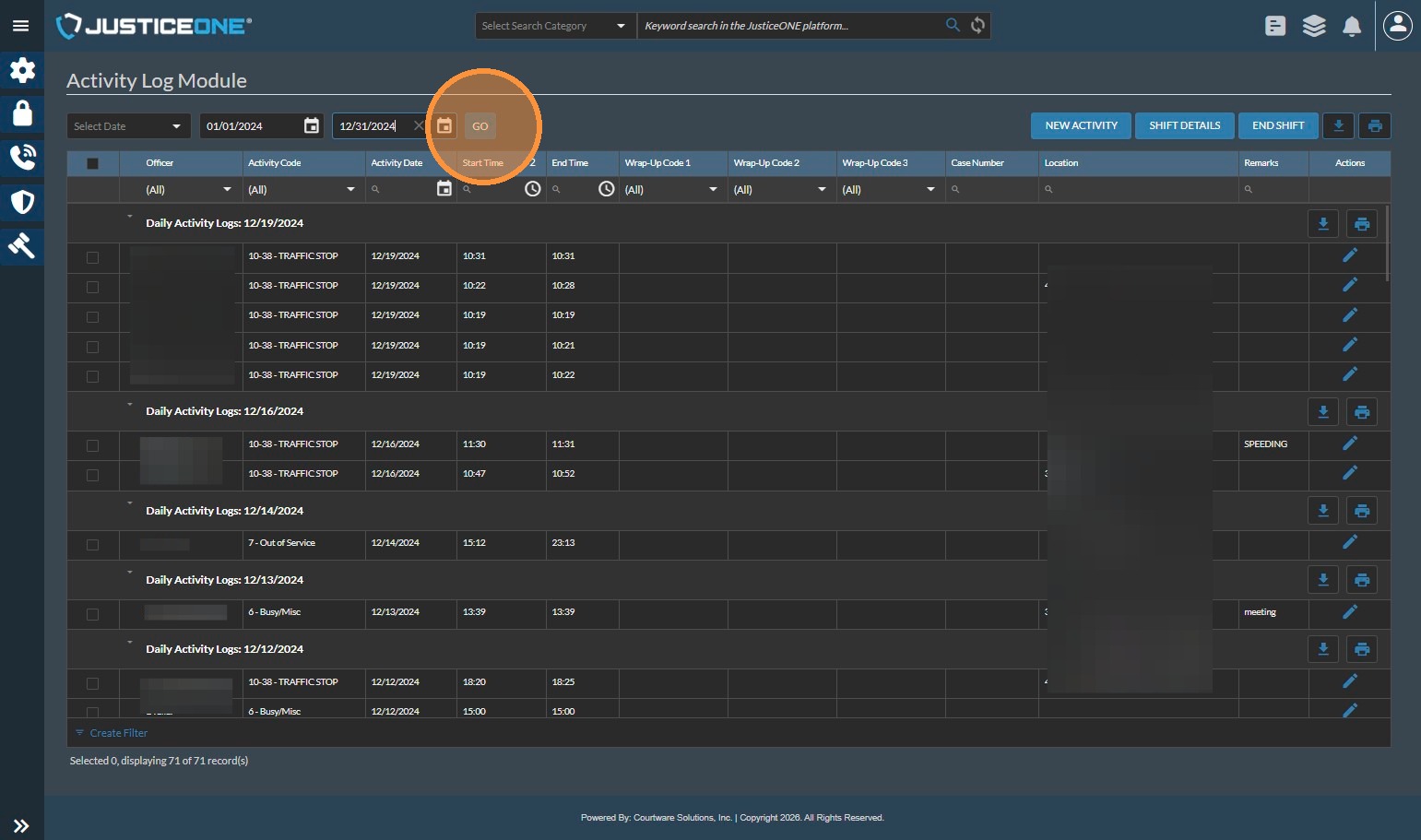
9. Once the data is populated, click the dropdown by "Activity Code"
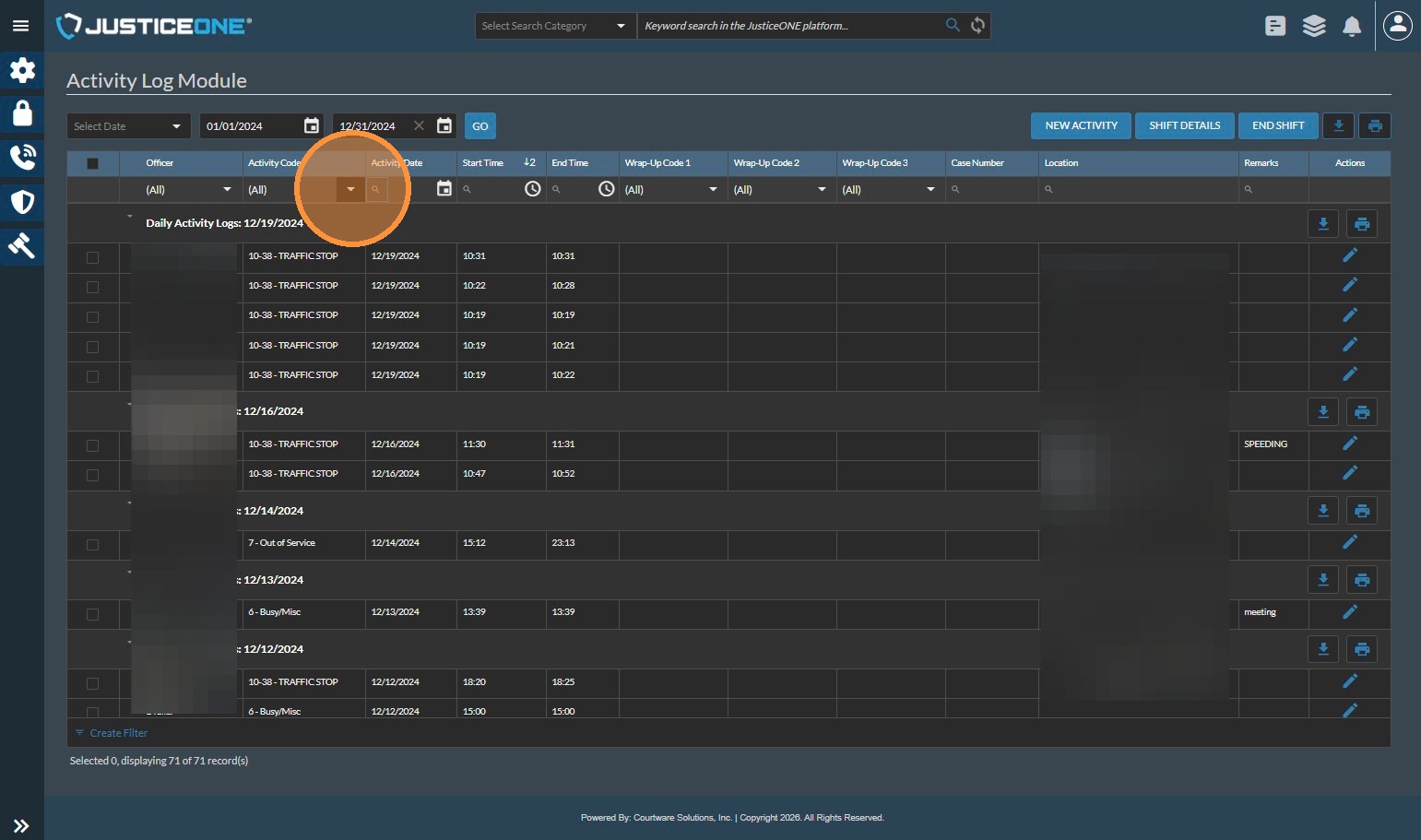
10. Select the desired code. ( We will use "Speeding" for this example, but you can use this to search for any activity code. If you need to pull for multiple codes, we will cover that a few steps later.)
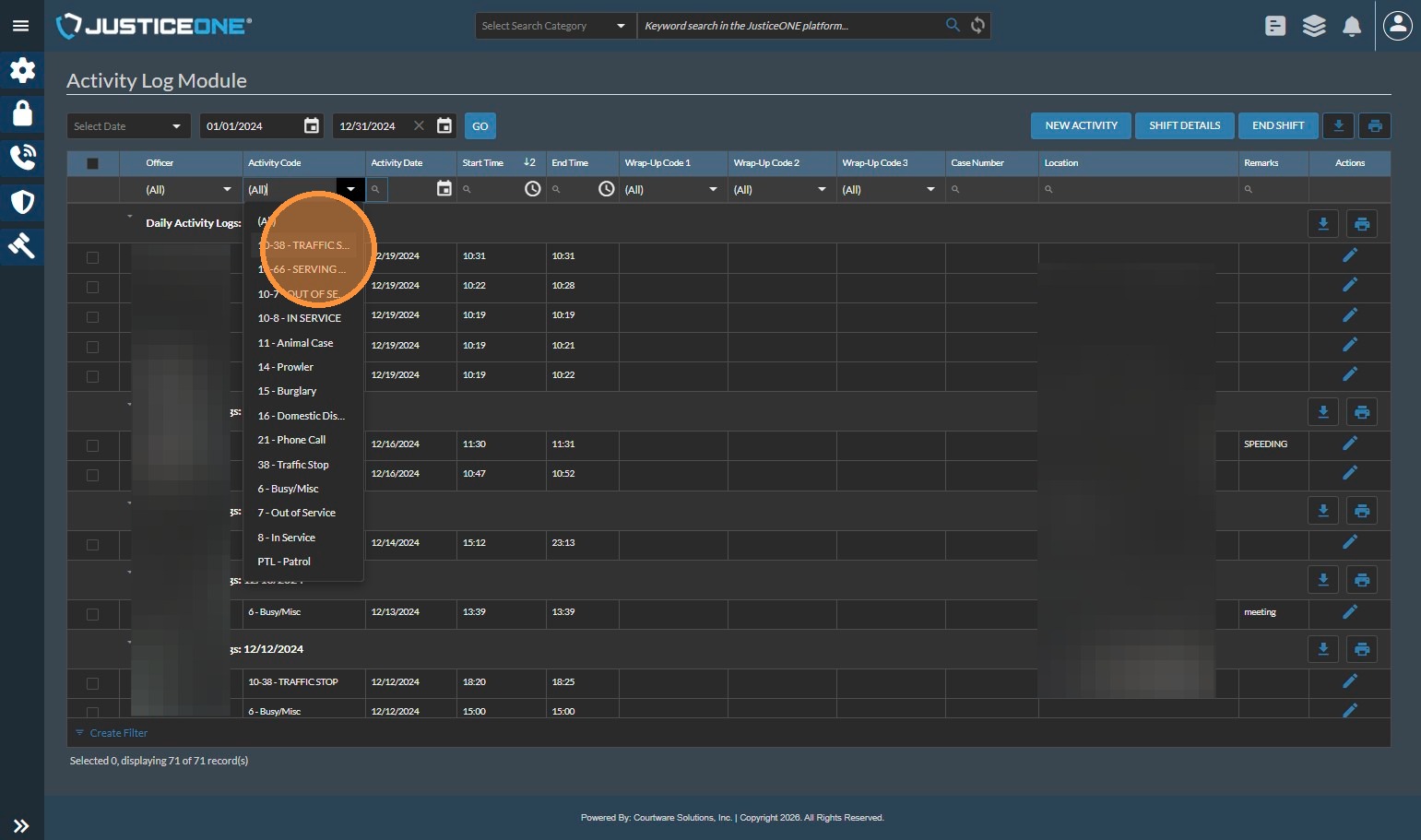
11. Once the list is filtered, you can read how many records exist in the number at the bottom of the screen. In this example, there are 18 records that match the filter, so you would report "18" for this line item.
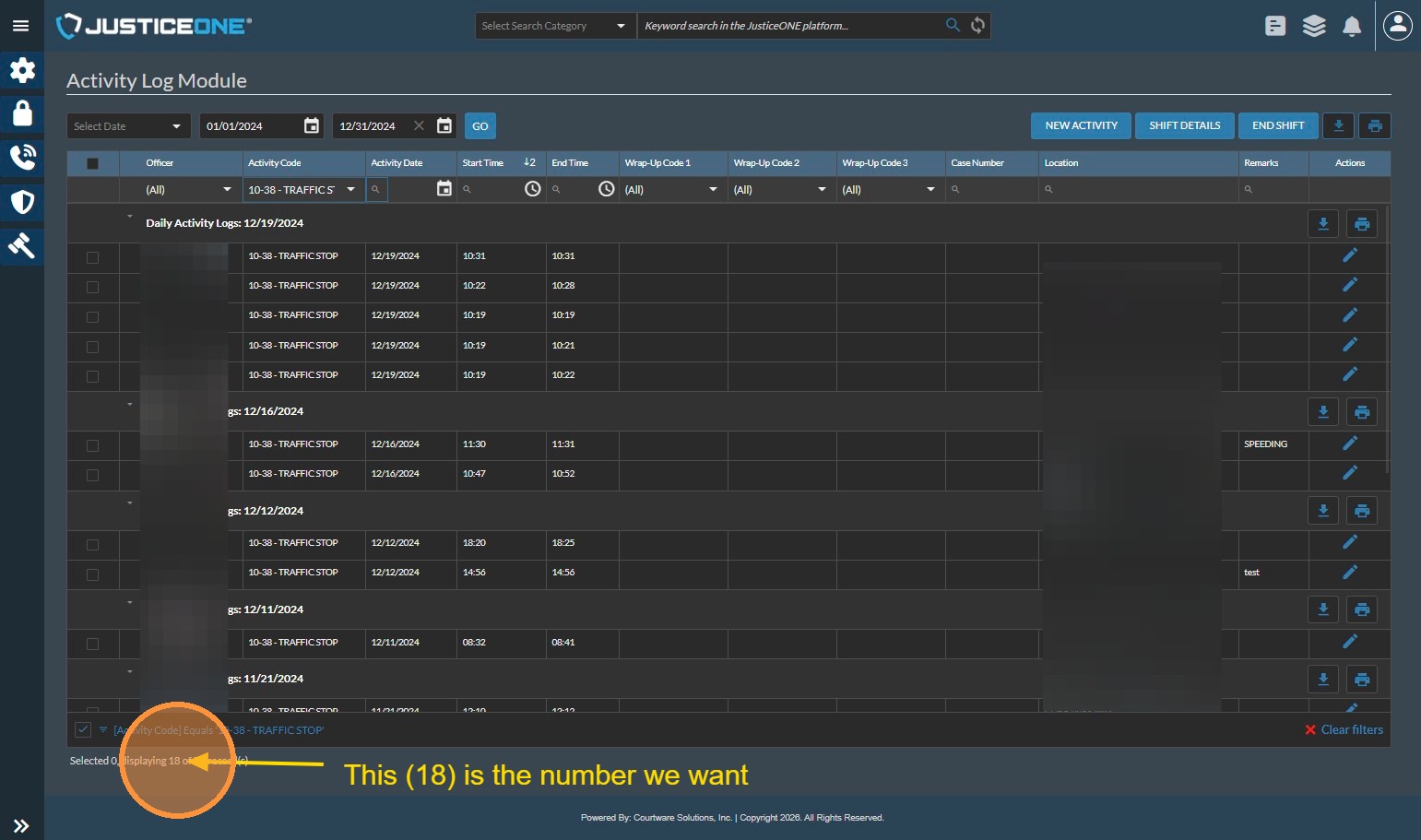
12. If you need to account for multiple codes in a single line item, note the number above, then click "Clear Filters"...
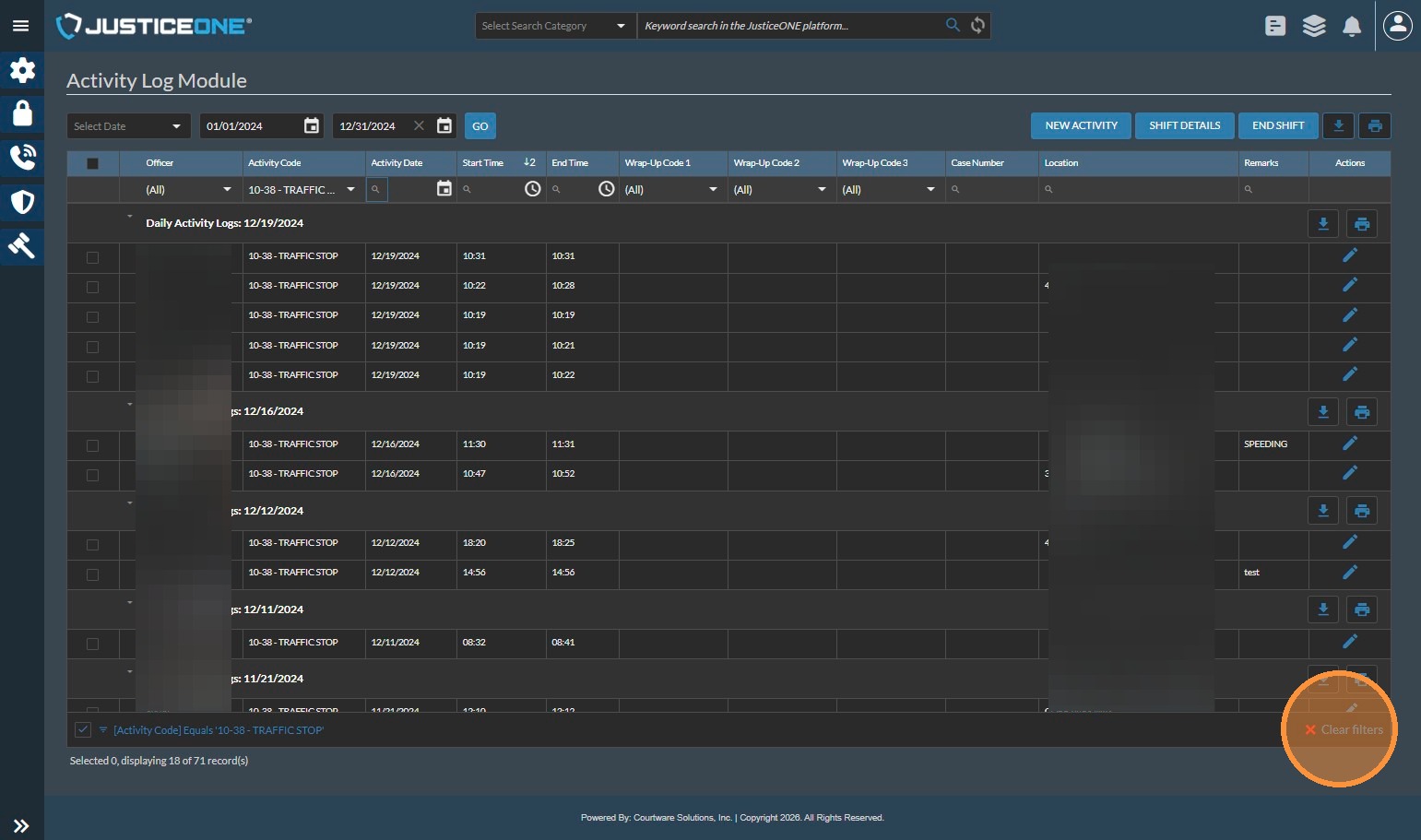
13. Change the Activity Code filter for the next desired code...
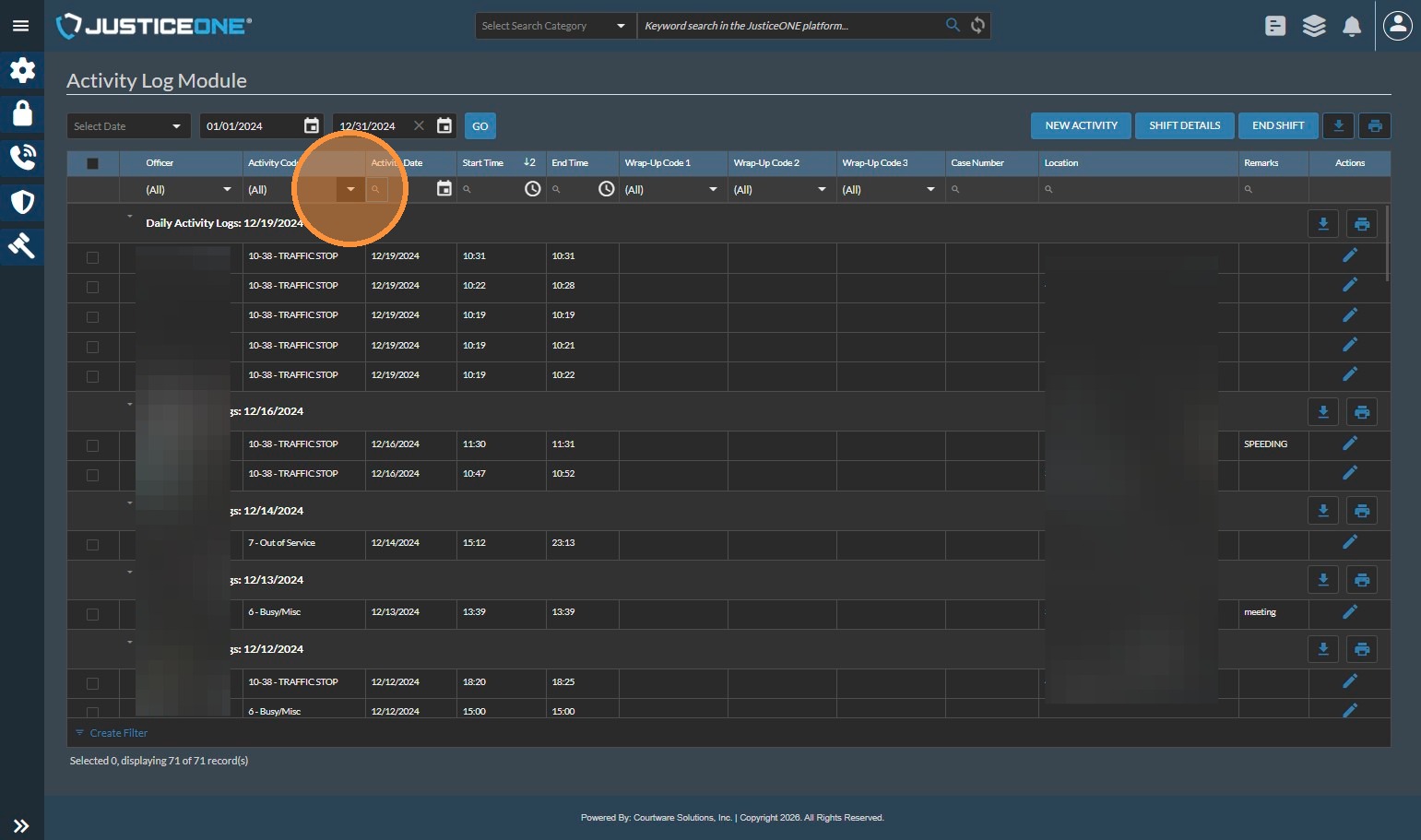
14. we will use "In Service" for this example...
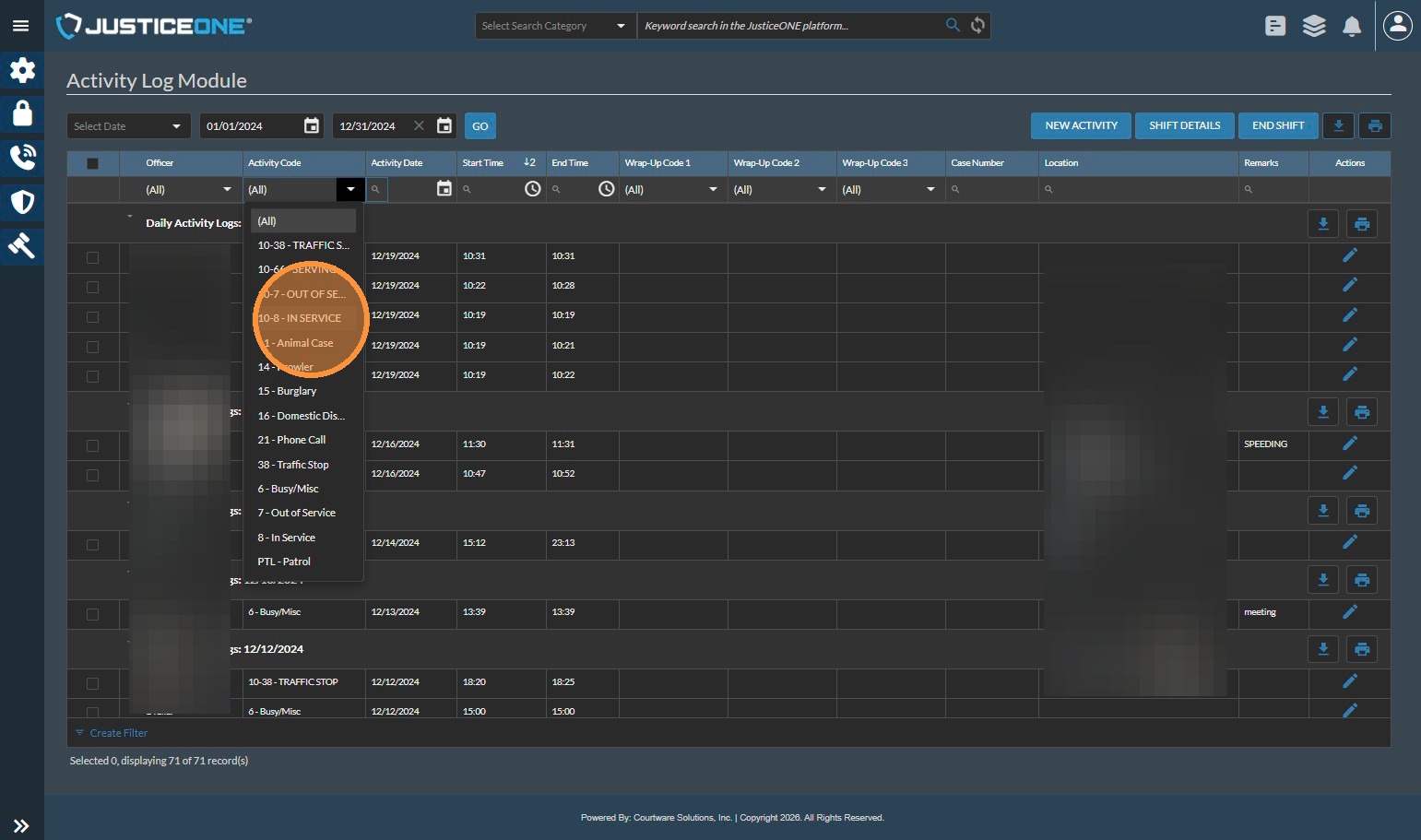
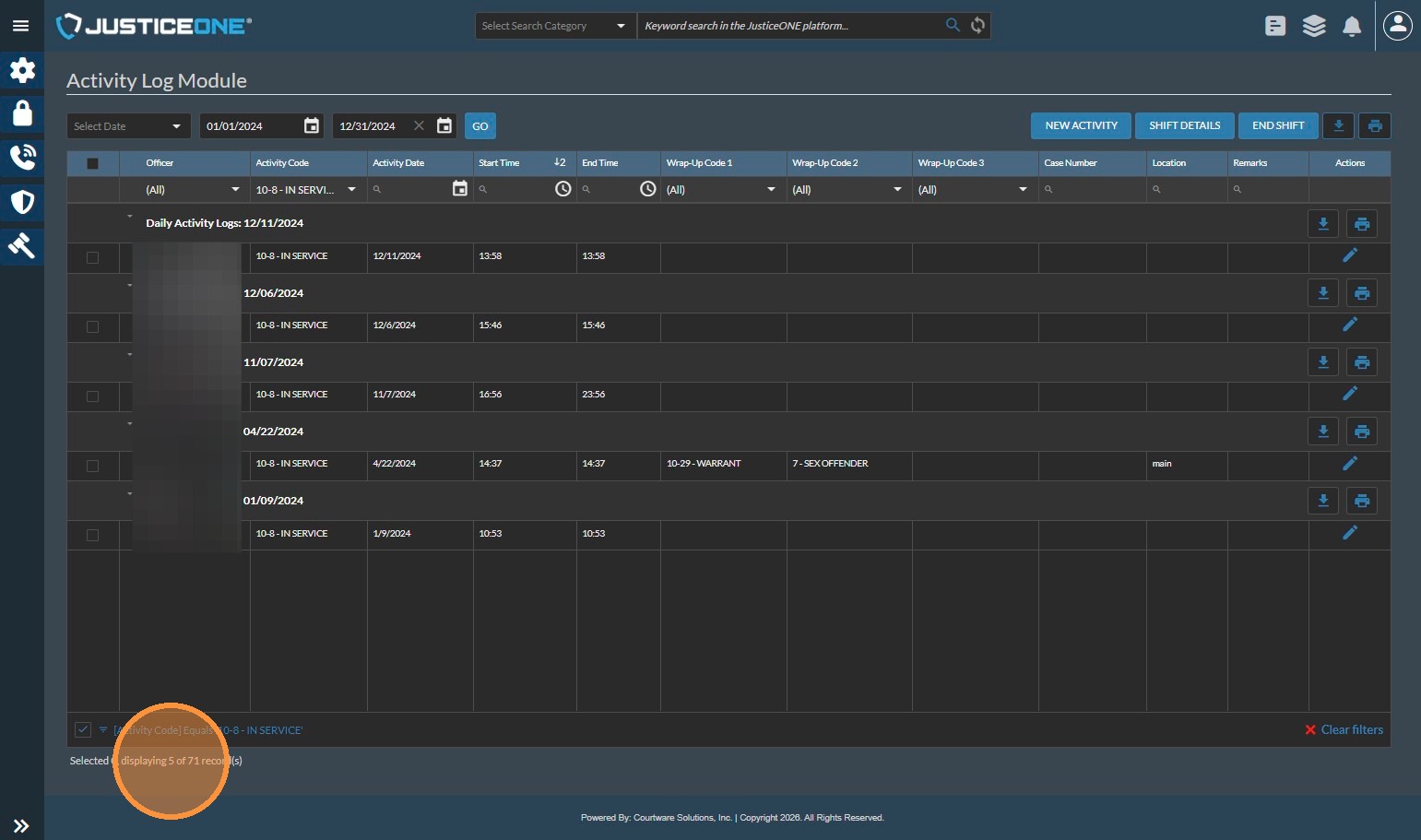
15. And we can see that there were 5 for the time period.
To report these multiple codes under a single line item, simply sum the counts for each code. In this example, if we wanted to report for both of these codes on a single line of a report, we would add 18+5, giving us a total activity count of 23.
Made with Scribe
Related Articles
Report Data Sources: Officer Statistics Report
The Officer Statistics Report in JusticeONE RMS provides a summary of activity for a single officer through any specified time period. To run the report, follow the directions below: 1. From anywhere in JusticeONE, click "Records" 2. Click "Reports ...Pulling Statistics for Specific Offenses in JusticeONE RMS
1. Navigate to https://www.justice-one.us/home/info 2. Click "RECORDS" 3. Click "Incidents" 4. We need to make sure that "Offenses" are visible. If they are not, click on the "Grid Preferences" icon... 5. Click "Column Arrangement" 6. In the ...Searching for Specific Evidence Types in JusticeONE RMS
1. Navigate to https://www.justice-one.us/home/info 2. Click on the hamburger menu... 3. and select "Evidence" 4. Select your begin date 5. ... 6. Then select your end date... 7. ... 8. Select the first evidence room to work with. If your search ...How to Activate or Deactivate VCMS Debug Log File
1. Click Settings 2. Click "System Settings" 3. Click "Options" 4. Check the box next to "VCMS Debug Log File" 5. Click "Save", then go perform the actions that cause the issue in question. 6. Once you are done, return to "Settings - System Settings ...OLE error code when running VCMS on Courtware Hosting (Azure) Server
Complaint: We are receiving an OLE error code and can not log in to VCMS. This is most often caused by maintenance processes that run automatically each night to ensure proper operation of the server. Any user that is still signed into Courtware ...